

Filesystem tools are host-brokered capabilities you can grant to API voices. When a voice has tools enabled, it can request file reads, writes, directory listings, command execution, and URL fetches during the course of a conversation. Polyphon intercepts the request, executes the operation on your machine, and returns the result to the voice — the voice never has direct access to your filesystem.
Tools are configured per-voice in the Composition Builder and are only available to API voices (Anthropic, OpenAI, Gemini, and custom OpenAI-compatible providers). CLI voices run as autonomous subprocess agents and manage their own file access — tool configuration does not apply to them.
Available Tools
| Tool | Label | Reads / Writes | Description |
|---|---|---|---|
read_file | Read File | Read | Read the contents of a file as UTF-8 text. Files larger than 50 KB are truncated. |
list_directory | List Directory | Read | List the contents of a directory tree (depth 3, max 500 entries). |
search_files | Search Files | Read | Search for files by name pattern within a directory tree. |
grep_files | Search File Contents | Read | Search for a text pattern across files in a directory. |
fetch_url | Fetch URL | Read | Fetch the content of an HTTP or HTTPS URL and return it as text (max 50 KB). |
write_file | Write File | Write | Write or overwrite a file with new content. |
move_file | Move / Rename File | Write | Move or rename a file. |
copy_file | Copy File | Write | Copy a file to a new location. |
delete_file | Delete File | Write | Permanently delete a file. |
run_command | Run Command | Write | Run an executable with arguments and return its stdout, stderr, and exit code. Output larger than 50 KB is truncated. Commands time out after 30 seconds. |
Enabling Tools in a Composition
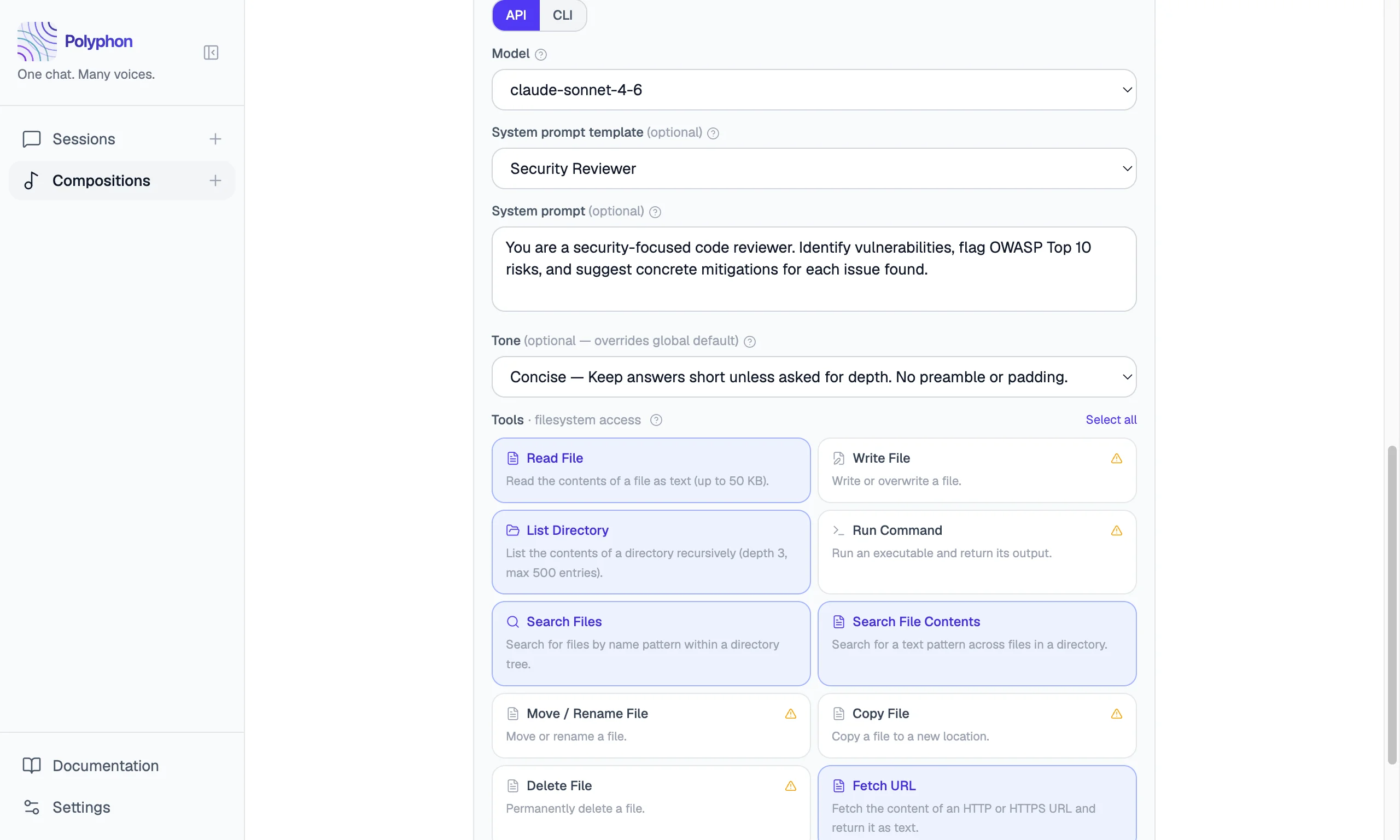
Tools are enabled per-voice in the Composition Builder. Open a voice’s configuration panel — the Tools section appears below the system prompt for API voices.
Each tool has a toggle. Check the tools you want to grant to that voice. Use Select all or Deselect all to quickly enable or disable the entire set.
When any write-capable tool is enabled (Write File, Move / Rename File, Copy File, Delete File, Run Command), a warning appears noting that those tools can modify or delete files. Review which tools each voice actually needs for the task.
CLI voices do not show the tools section. They run as subprocess agents and have their own file access model.
Sandboxing
When you set a working directory for a session, the new session panel shows a Sandbox API voices to this directory checkbox.
When sandboxing is enabled:
- All file path arguments for enabled tools are resolved relative to the working directory.
- Any attempt to access a path outside the working directory (e.g. via
../) is blocked with an access denied error. - The
run_commandtool’s working directory defaults to the sandbox directory if not specified.
This prevents a voice from reading or writing files outside the project you are working in.
CLI voices are not affected by sandboxing. CLI tools like claude and codex run as autonomous subprocess agents and manage their own access. If your composition includes CLI voices, an amber warning appears when you enable sandboxing to make this clear.
How Tool Execution Works
When a voice decides to use a tool, the exchange looks like this:
- The voice sends a tool call request (e.g. “read the file
src/main.ts”). - Polyphon intercepts the request in the main process, validates the path (if sandboxed), and executes the operation.
- The result is sent back to the voice as a tool result message.
- The voice continues generating its response using that result.
This loop can repeat multiple times in a single response — a voice may call several tools before producing its final answer. The model decides when it has enough information and stops.
Tool execution is visible in the session message feed: each tool call and its result appear as a collapsible block inside the voice’s message.
Security Considerations
- Only enable tools a voice actually needs. A voice doing code review needs
read_fileandgrep_files. It does not needwrite_fileorrun_command. - Use sandboxing when working on a specific project. It limits tool access to the project directory and prevents accidental reads or writes elsewhere on your machine.
run_commandis the highest-privilege tool. It can run any executable your account can run. Only enable it for voices you trust and when you need shell command output as part of the task.fetch_urlmakes network requests from your machine. The request goes out with your IP address. Only enable it when you want the voice to be able to look things up online.
All tool execution happens in the main process — the renderer never directly accesses your filesystem or network.