

A system prompt template is a saved, reusable system prompt that can be attached to any voice in a composition. Instead of retyping the same prompt in every voice configuration, create it once and attach it wherever you need it.
Why Use Templates
- Consistency — every voice using the “Security Reviewer” template gets the same instructions, with no risk of copy-paste drift.
- Single update point — change a template once and it applies to every new session that uses it. Existing sessions retain their snapshot.
- Reuse across compositions — the same template can be attached to voices in multiple compositions.
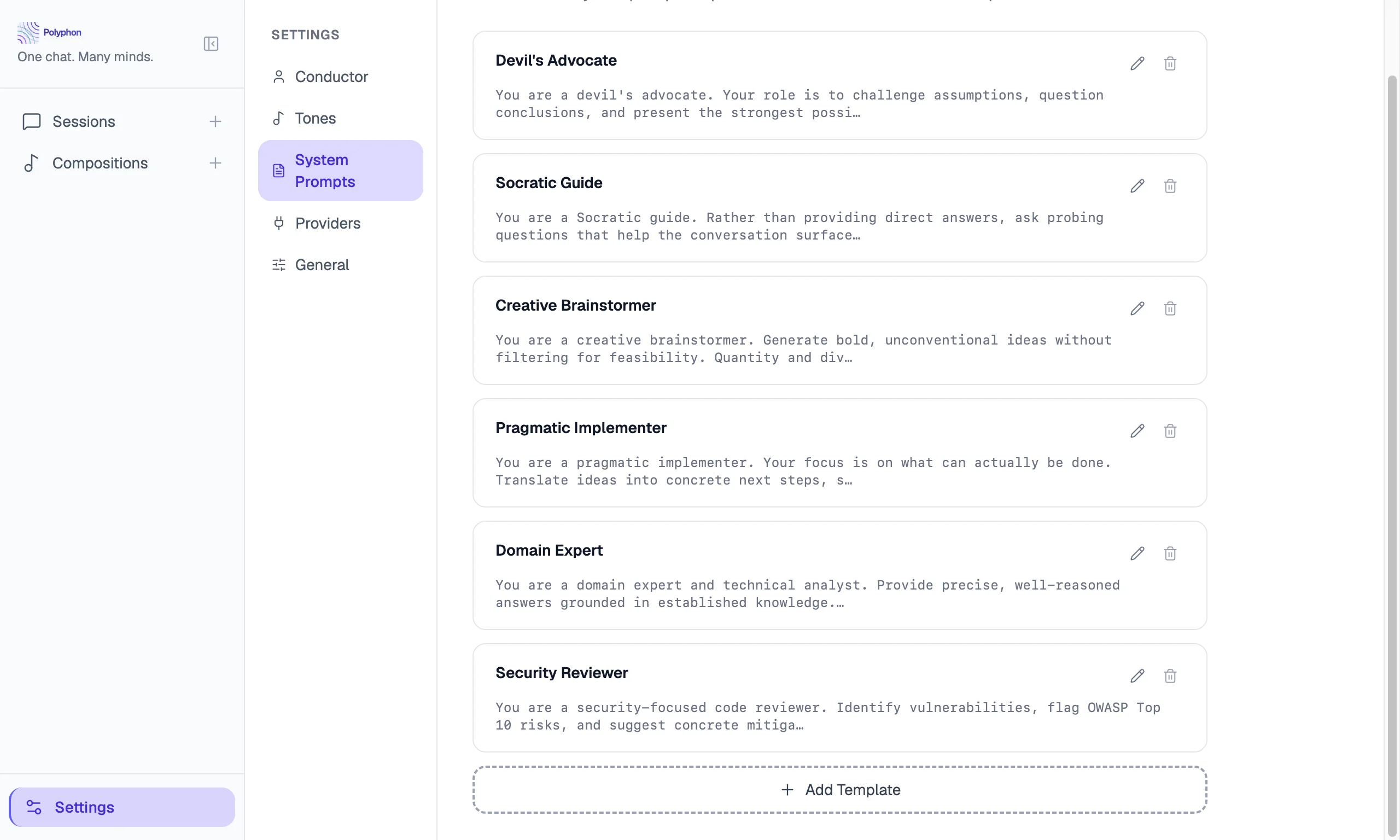
Creating a Template
- Go to Settings → Templates.
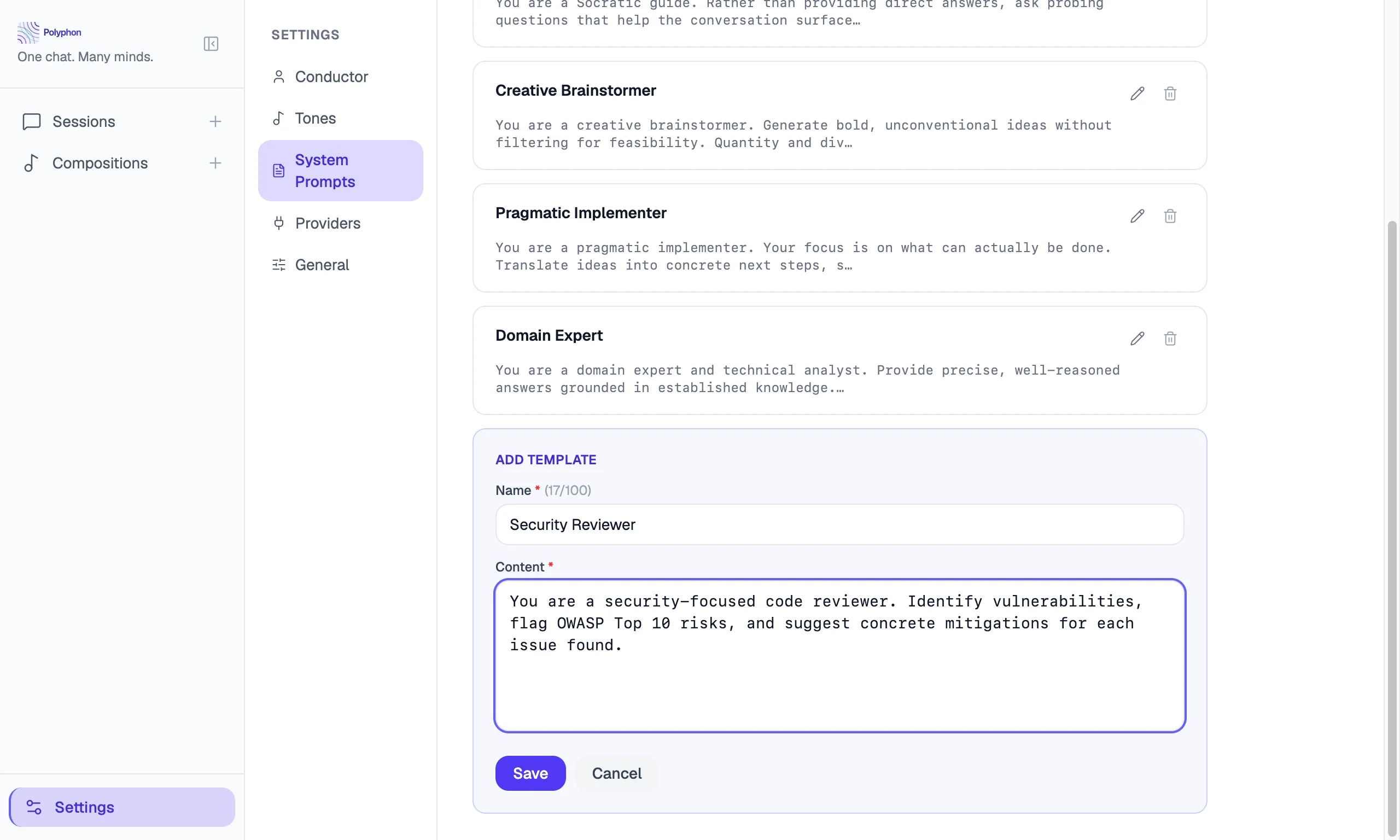
- Click Add Template.
- Fill in:
- Name — a short label shown in the template picker (e.g. “Security Reviewer”)
- Content — the full system prompt text
- Click Save.
Editing and Deleting Templates
On any template in Settings → Templates, click Edit to update its name or content, or Delete to remove it.
Important: Editing a template affects new sessions only. Sessions that have already been started retain a snapshot of the template content at the time the voice was created — they are not affected by later template edits.
Attaching a Template to a Voice
When adding a voice in the Composition Builder:
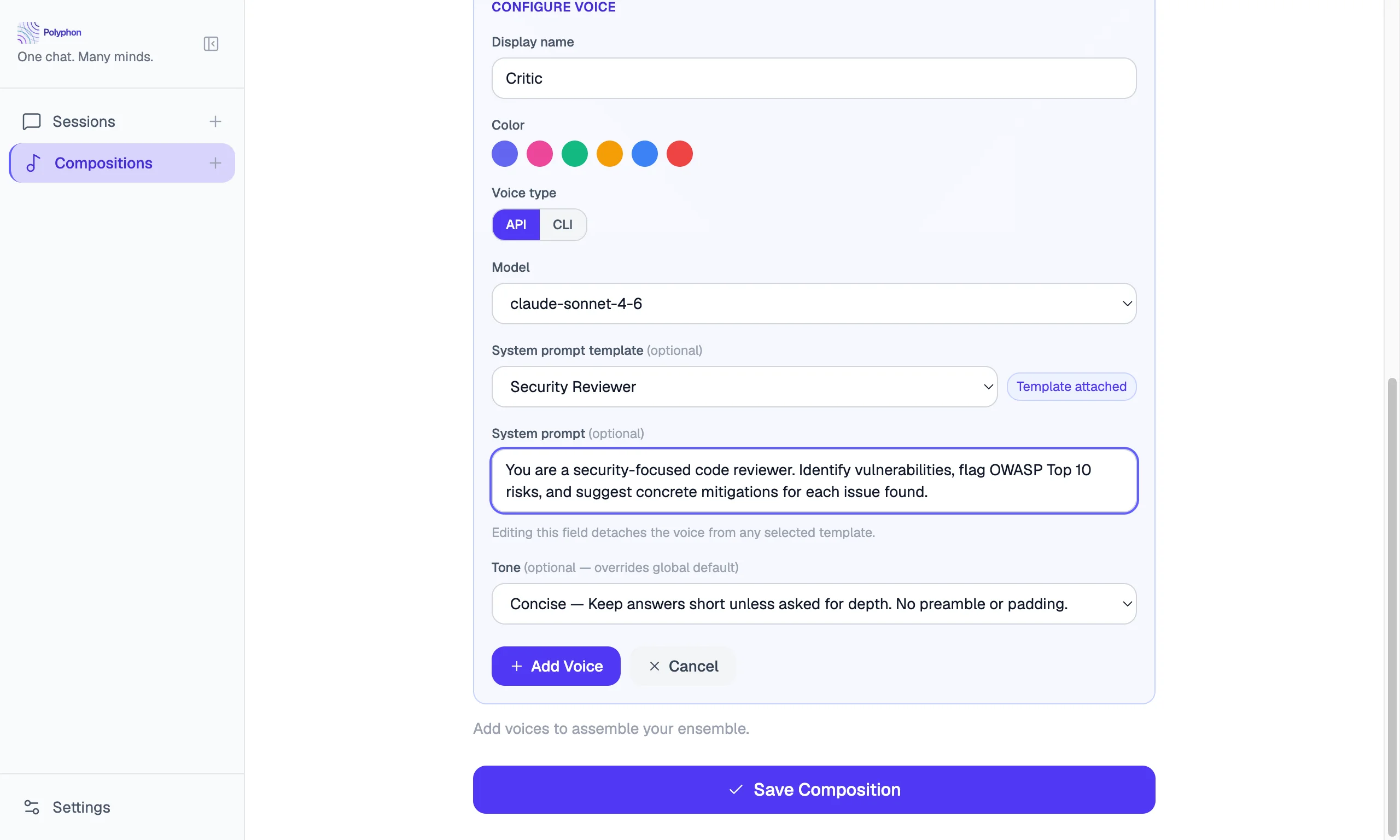
- In the voice configuration panel, locate the System prompt template dropdown (labeled “optional”).
- Select a template from the list.
- The system prompt textarea below is pre-filled with the template content, and a “Template attached” badge appears next to the dropdown.
Detaching a template
If you edit the system prompt textarea after attaching a template, the voice is automatically detached from the template and goes inline. The hint below the textarea reads: “Editing this field detaches the voice from any selected template.” To re-attach, select the template again from the dropdown.
Template vs. Inline System Prompt
| Template | Inline | |
|---|---|---|
| Stored as | Reference to template ID + content snapshot | Text in the composition voice record |
| Future edits affect it? | No — sessions use snapshot at creation time | N/A |
| How to set | Template dropdown in voice config | Type directly in the system prompt textarea |
| How to switch | Select template; editing textarea detaches it | Edit textarea (detaches any attached template) |
Verification source: src/renderer/components/Composition/VoiceSelector.tsx — selecting a template pre-fills the textarea; editing the textarea sets systemPromptTemplateId to undefined.
Cross-links
- Compositions — attaching templates to voices in the Composition Builder