

The Settings page lets you configure voice providers, manage tones and system prompt templates, and set up your Conductor Profile. Open it by clicking the gear icon in the bottom-left corner of the main window.
Settings is organized into tabs: Providers, Custom Providers, Tones, Templates, and Conductor Profile.
Provider Settings
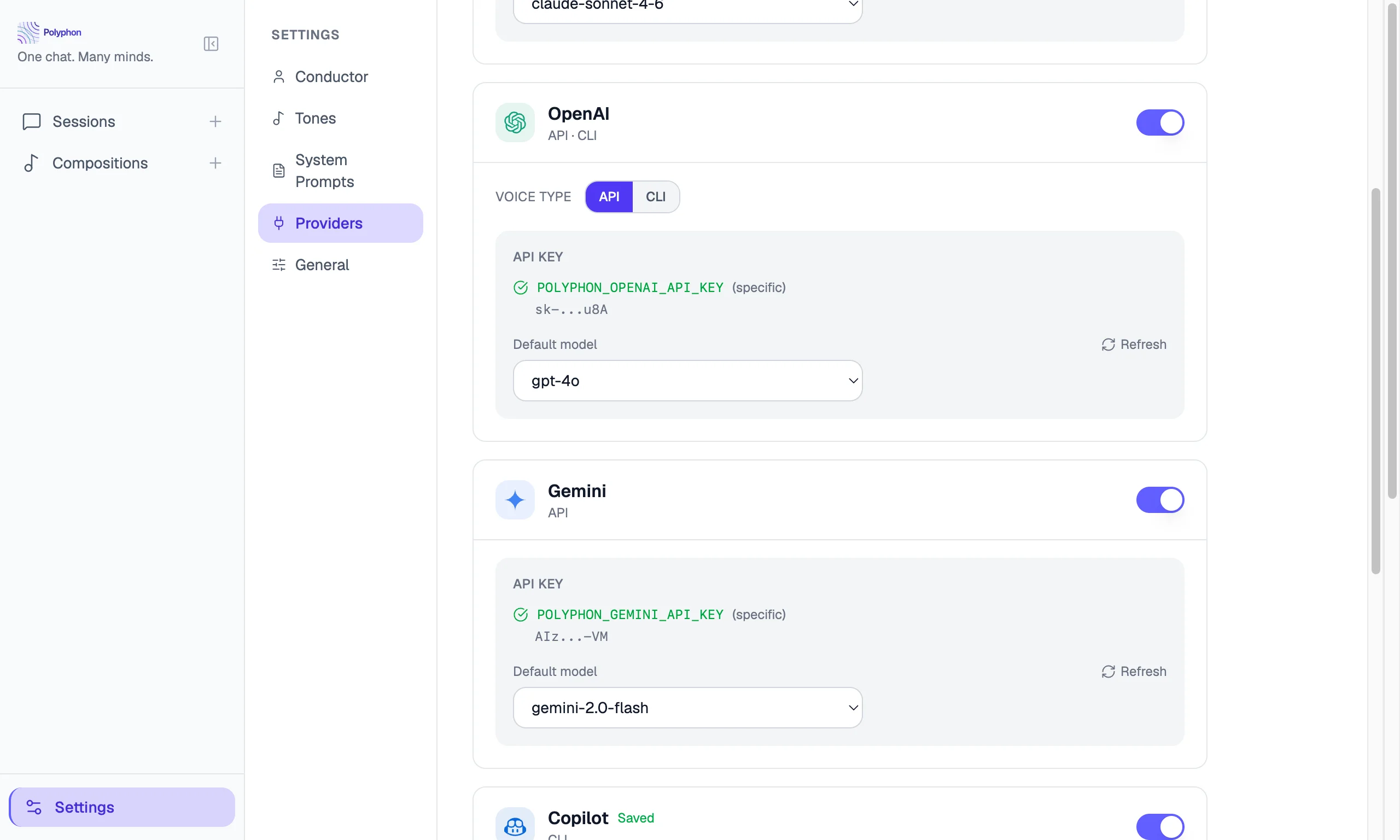
Each supported voice provider has its own settings card. The card shows the provider’s current status and lets you enter or update credentials.
API key providers
For API-based providers (Anthropic, OpenAI, Google):
- Expand the provider card.
- Paste your API key in the key field.
- Click Save to store the key locally.
- Click Test to verify the key works.
The key is stored in your local database and is never transmitted anywhere except to the provider’s API when you send a message.
CLI providers
For CLI-based providers (Claude CLI, Codex, Copilot):
- Expand the provider card.
- Polyphon automatically detects whether the CLI tool is available in your
PATH. - Click Test to confirm Polyphon can invoke the tool.
If the CLI tool is not found, install it following the provider’s official instructions and ensure it is on your PATH.
Model Selection
For API providers, you can select which model to use as the default when adding a voice from that provider. You can also override the model on a per-voice basis within a composition.
Click Fetch Models to retrieve the current list of available models from the provider’s API.
Custom Providers
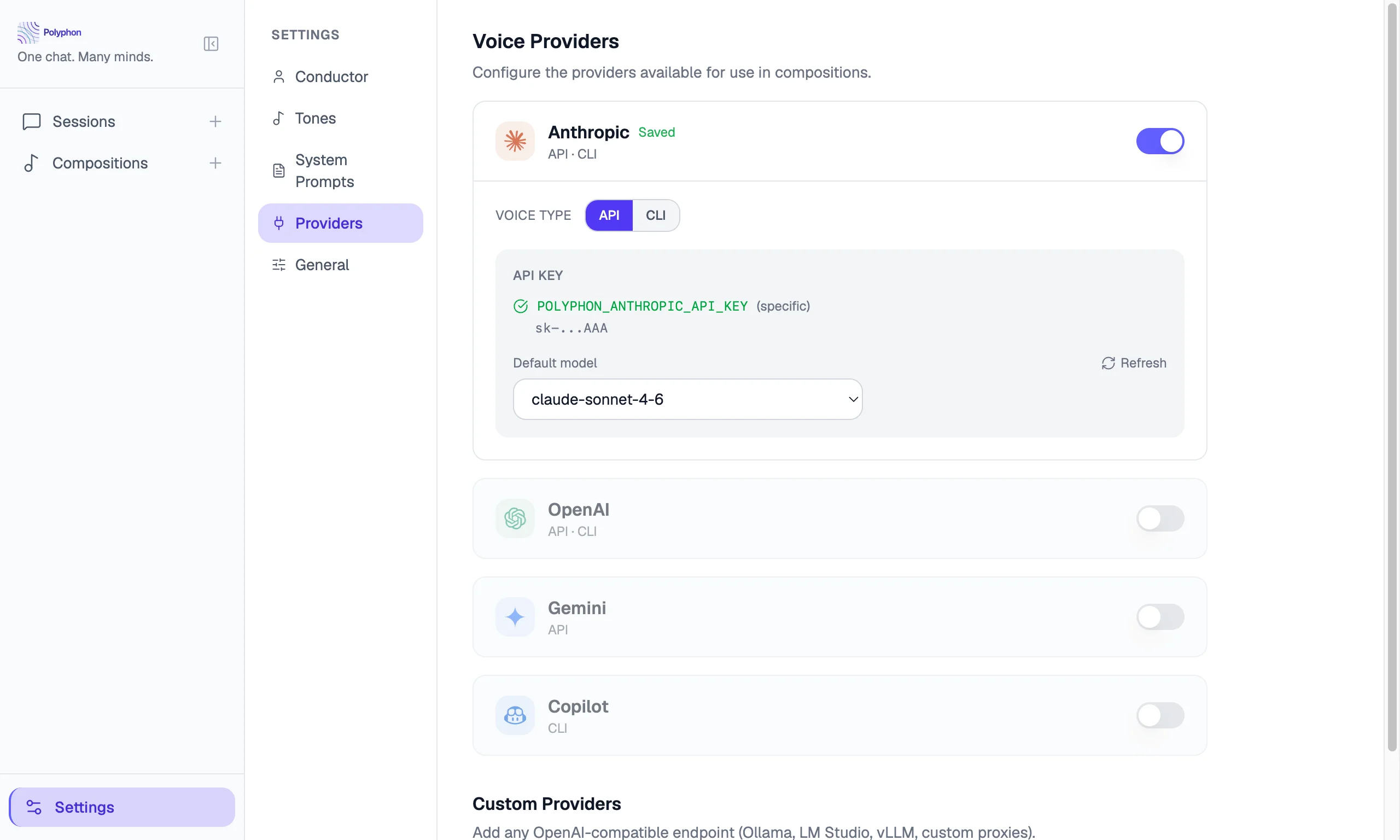
The Custom Providers tab lets you add and manage OpenAI-compatible voice endpoints — such as a local Ollama instance, LM Studio, or a private inference proxy. Once added, a custom provider appears in the Composition Builder alongside built-in providers.
See Custom Providers for the full setup flow.
Tones
The Tones tab lets you create and manage tone presets — reusable voice-behavior configurations that shape how a voice communicates. Polyphon ships five built-in tones (Professional, Collaborative, Concise, Exploratory, Teaching), which can also be edited and deleted.
See Tones for details on creating custom tones and assigning them to voices.
Templates
The Templates tab lets you create and manage system prompt templates — saved, reusable system prompts that can be attached to any voice in a composition.
See System Prompt Templates for details on creating templates and attaching them to voices.
Conductor Profile
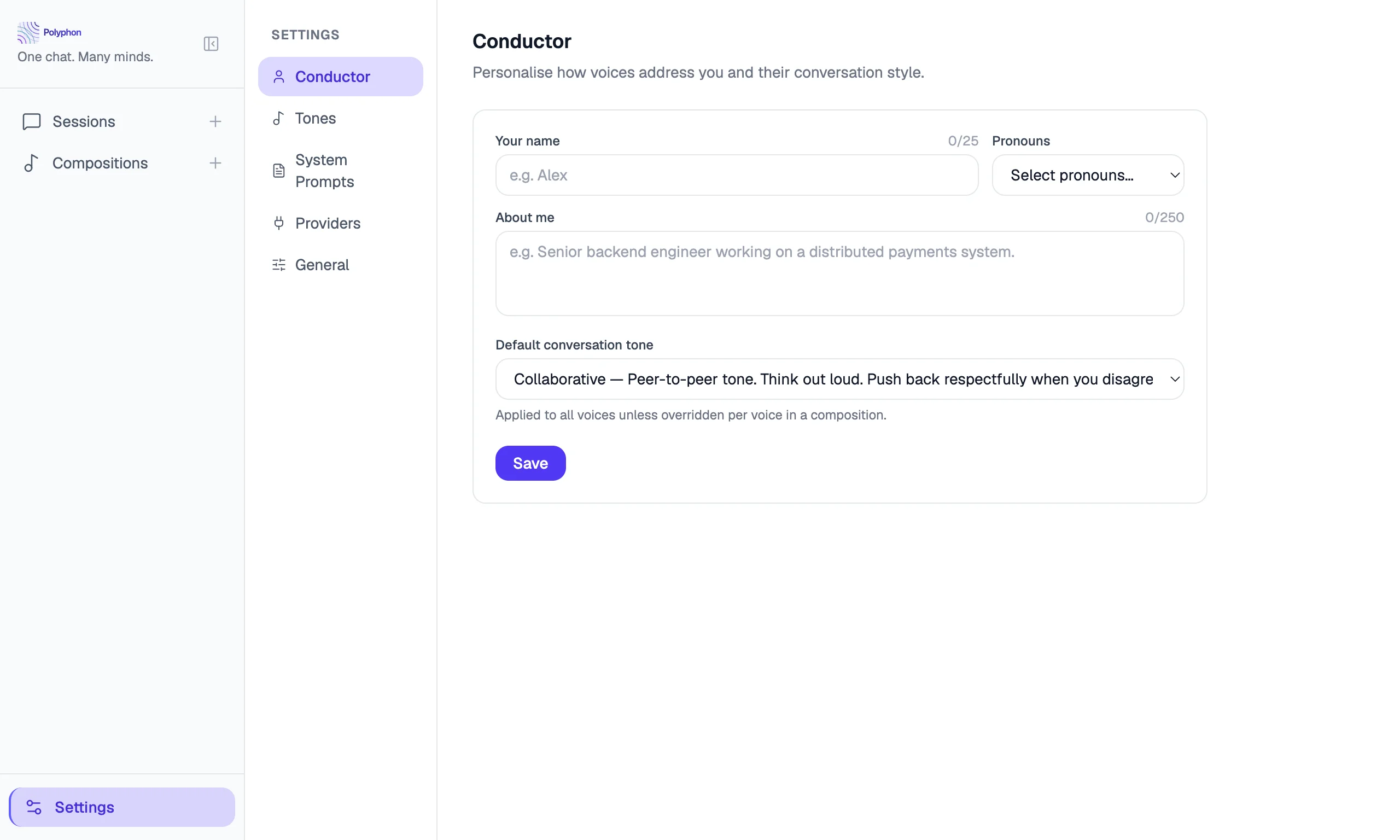
The Conductor Profile section of Settings stores information about you that is shared with all voices. See Conductor Profile for the full details.
Data Location
Polyphon stores all data locally. The database file is located at:
| Platform | Path |
|---|---|
| macOS | ~/Library/Application Support/polyphon/polyphon.db |
| Windows | %APPDATA%\polyphon\polyphon.db |
| Linux | ~/.config/polyphon/polyphon.db |
Your API keys, session history, and compositions are all in this file. Back it up if you want to preserve your data.
Telemetry
Polyphon does not collect or transmit usage data by default. There is no analytics, no crash reporting, and no network activity beyond the API calls you explicitly trigger by sending messages.