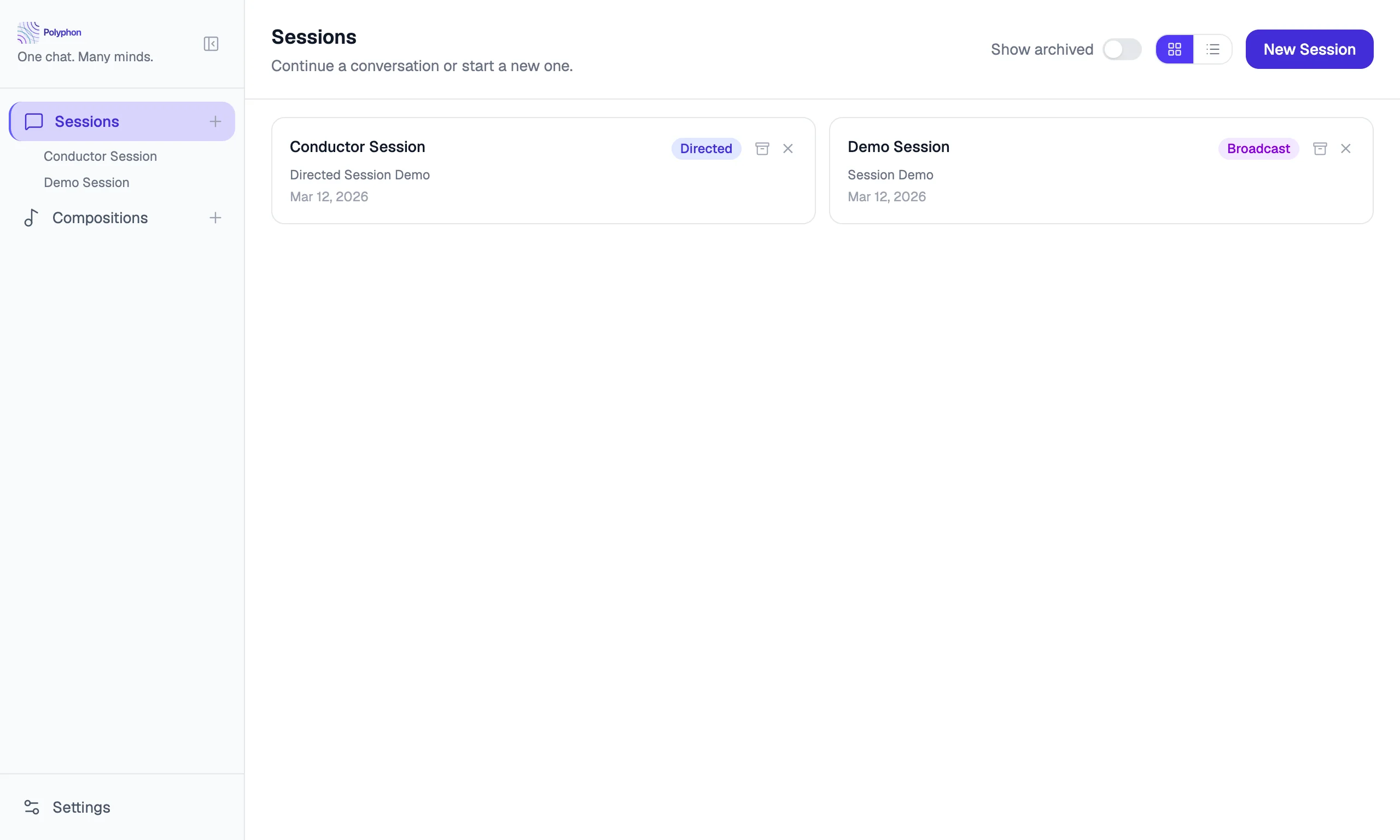

A session is a live conversation with one or more voices. This page covers how to start, use, and manage sessions.
Starting a New Session
Click the + button at the top of the sidebar to open the new session panel.
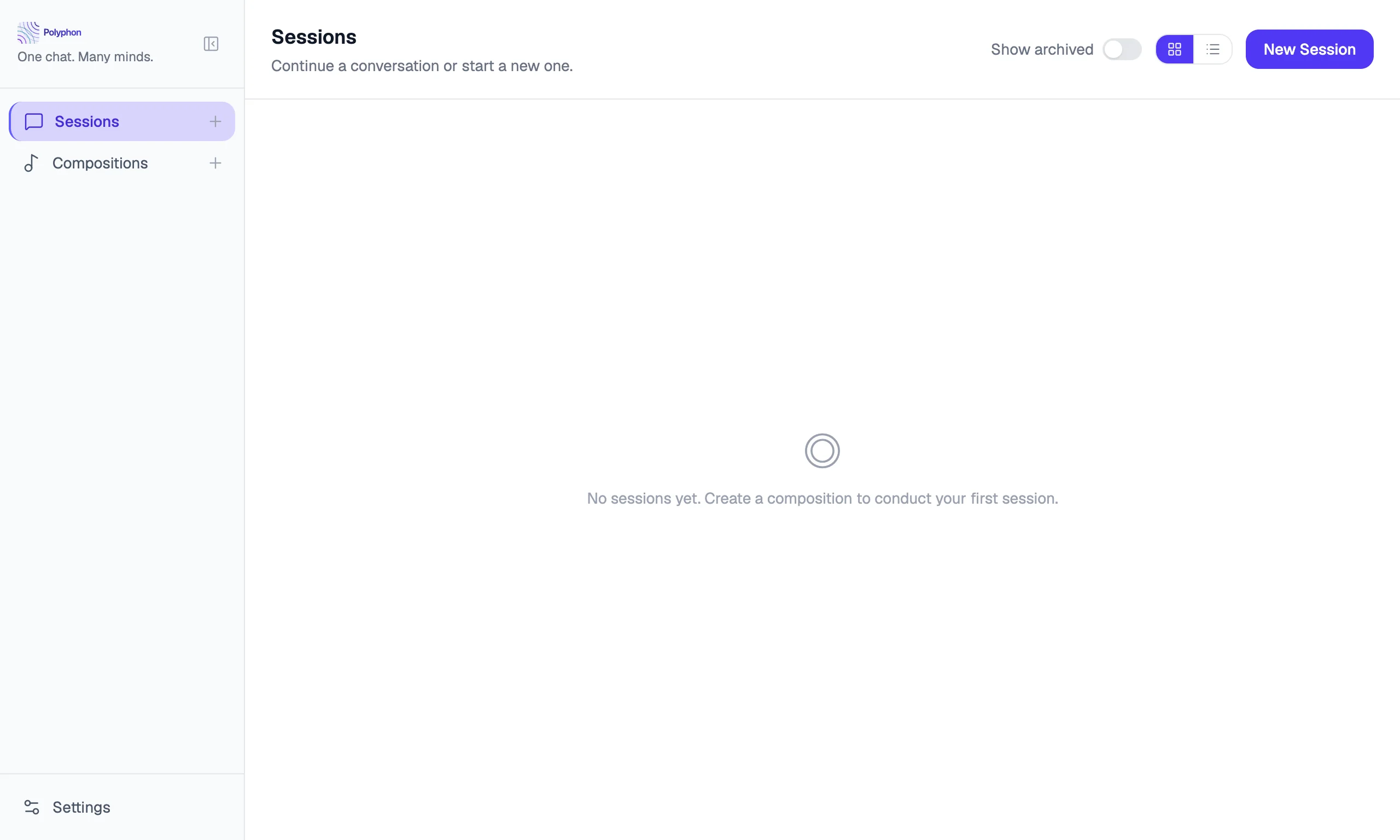
You can start a session in two ways:
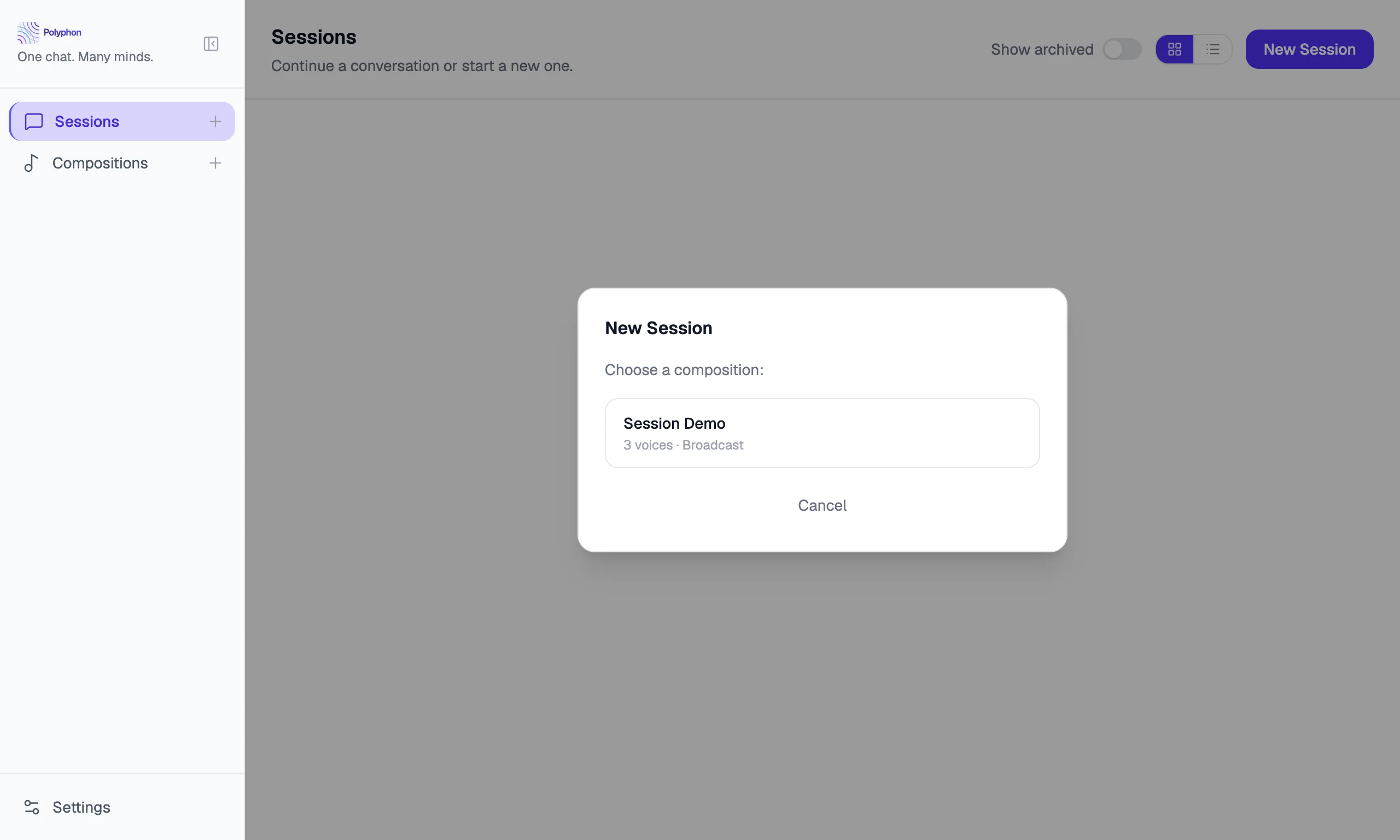
- From a composition — select a saved composition and click Start Session. The session launches with the composition’s voices pre-configured.
- Ad-hoc — add voices manually without a composition. Configure each voice’s provider, model, name, and system prompt inline.
The Session View
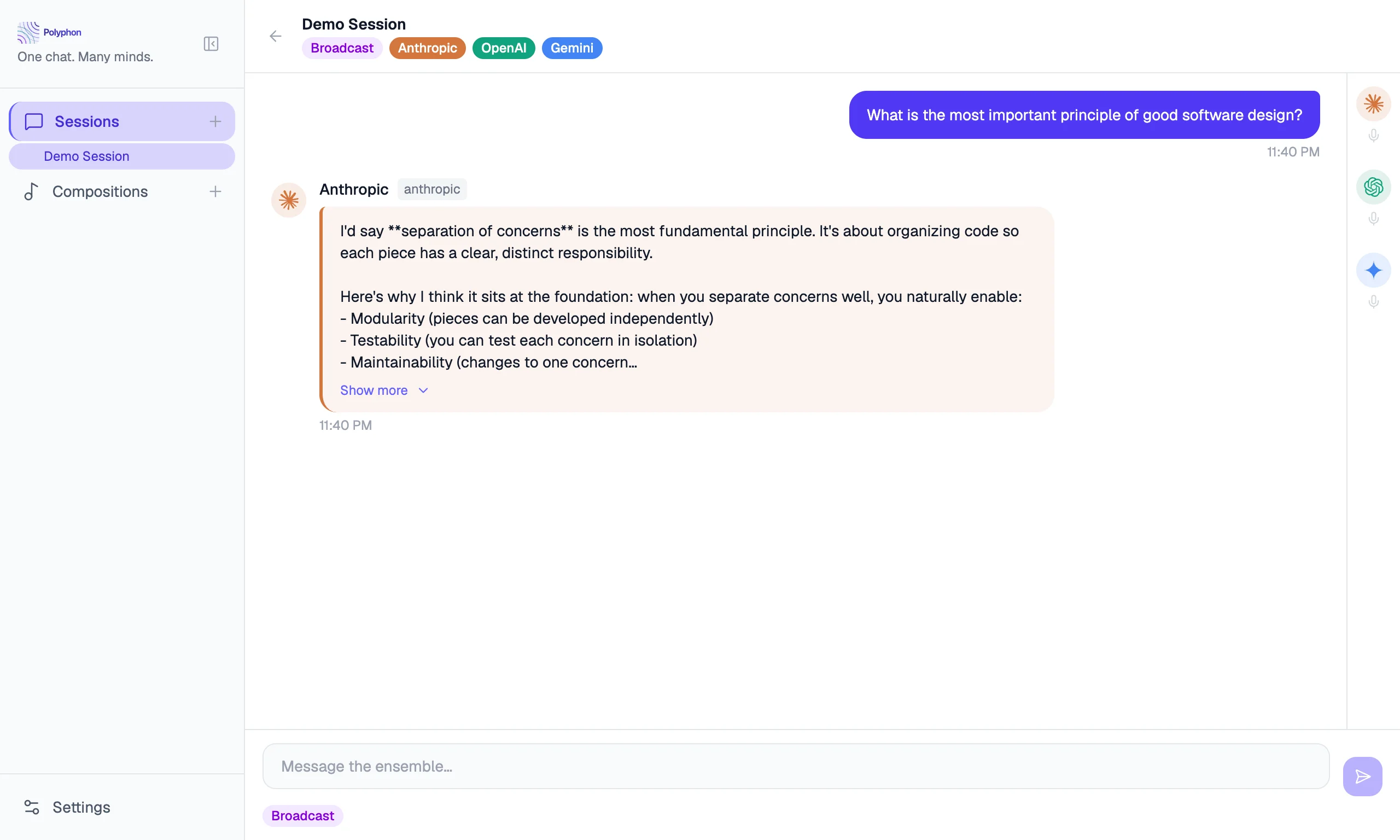
Once a session starts, you see the session view:
- Message feed — the full conversation history, with messages grouped by voice
- Voice panel — shows each active voice and its status (waiting, generating, done, error)
- Input bar — where you type and send messages
Sending a Message
Type your message in the input bar at the bottom and press Enter (or Shift+Enter for a newline). Your message is sent to all active voices simultaneously.
Each voice’s response streams in as it is generated. You can read responses as they arrive — you don’t have to wait for all voices to finish before reading.
Broadcast vs. Conductor Mode
Sessions have two modes, selectable from the voice panel header:
Broadcast mode — your message goes to every voice. This is the default.
Conductor mode — direct your message to a specific voice. The other voices see the exchange but stay silent.
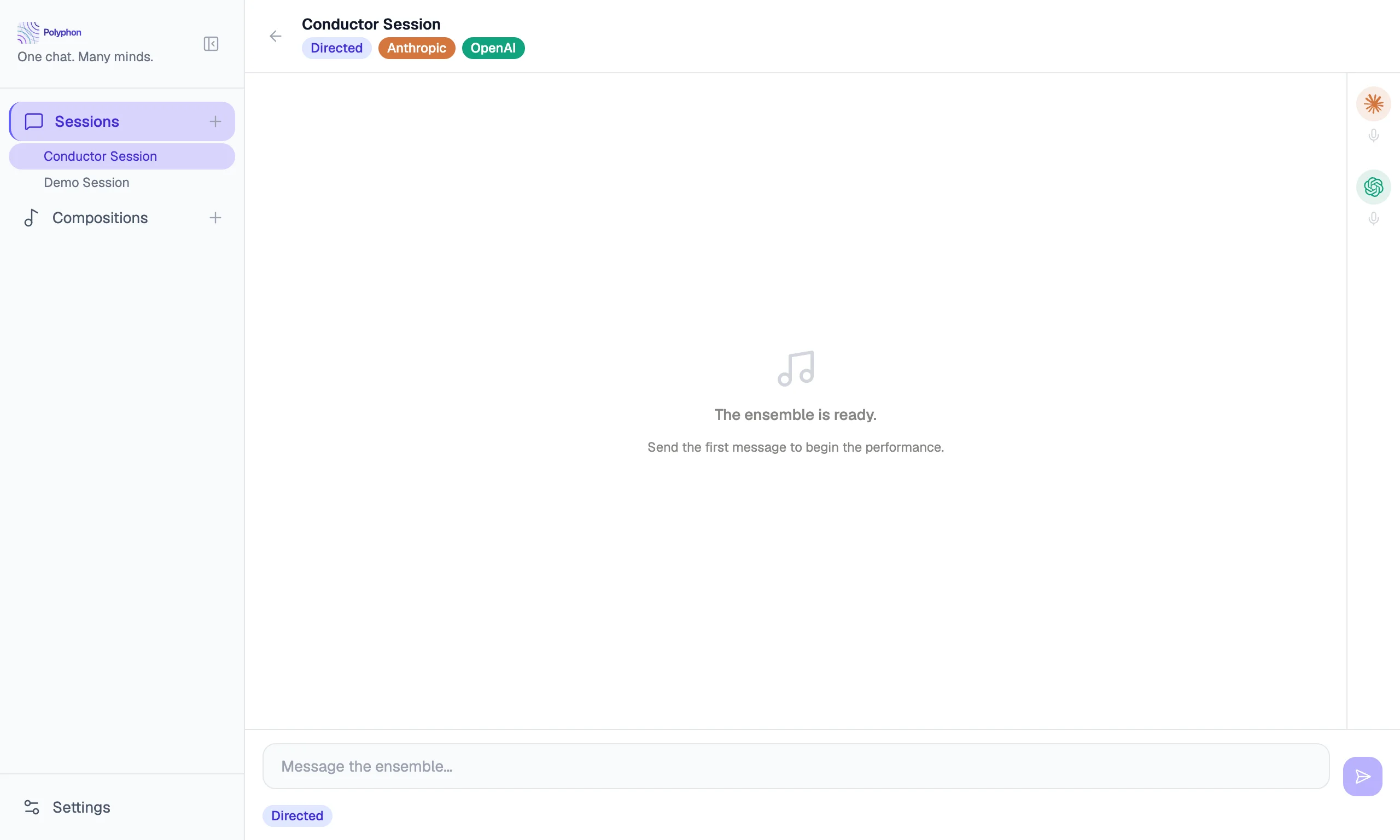
Targeting a voice in conductor mode
There are two ways to target a voice in conductor mode:
- Click the voice in the voice panel. The selected voice is highlighted.
- Type
@in the message input to open a voice picker dropdown. The dropdown lists all active voices by display name. Select a voice from the dropdown to direct your next message to that voice; the voice panel updates to highlight the selection.
Continuation Rounds
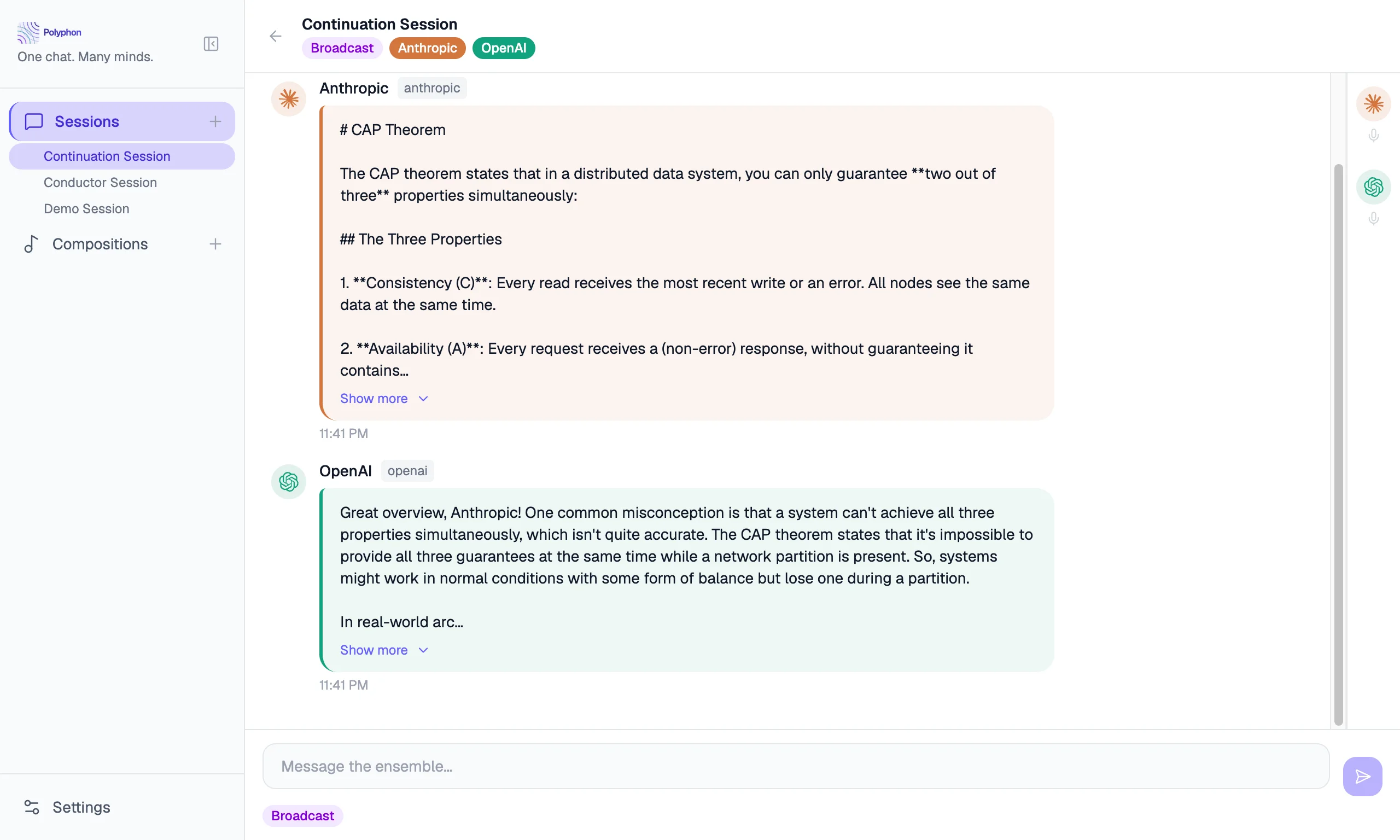
Each voice can be configured to automatically send additional rounds after its initial response. This lets voices respond to each other without you sending another message.
To enable continuation on a voice, expand its settings in the voice panel and set the Continuation rounds value (1–3).
When a continuation is triggered, you’ll see a system message in the feed indicating a new round has started.
Aborting a Response
If a voice is taking too long or you want to stop a response mid-stream, click the Stop button that appears next to the voice while it is generating.
Session History
All messages in a session are saved automatically to your local database. To view past sessions, scroll through the sidebar — sessions are listed chronologically.
Archiving Sessions
To hide a session from the sidebar without deleting it, right-click the session in the sidebar and select Archive. Archived sessions are not shown by default but can be retrieved if needed.