

Polyphon has two complementary search modes: global search lets you find messages across every session, and per-session search (Cmd+F) highlights matches inline in the conversation you have open.
Both are backed by an FTS5 full text index that is kept in sync automatically as messages arrive.
Global Search
Open global search from the Search entry in the sidebar. The search view replaces the session or composition view until you navigate away.
Type at least two characters to begin. Results appear as you type — there is no need to press Enter.
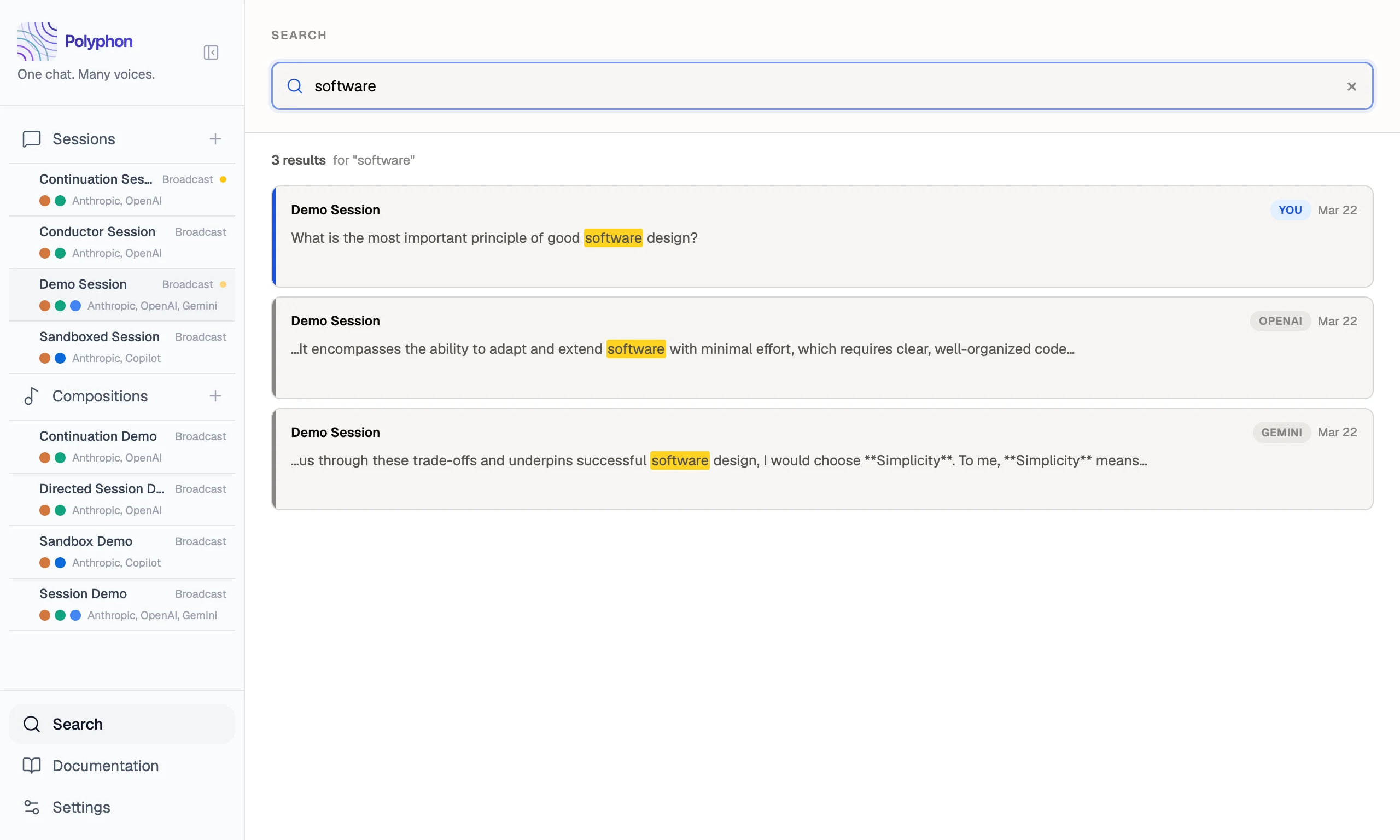
Each result card shows:
- Session name — which session the message belongs to
- Role badge — you (conductor) or the voice display name
- Snippet — the matching excerpt with the query term highlighted
- Date — when the message was sent
Results are capped at 50. If your query returns more than 50 matches, try a more specific term.
Jumping to a message
Click any result card to open the session and scroll directly to the matching message. The message is highlighted in the feed so you can find it at a glance.
Per-Session Search
While in a session, press Cmd+F (macOS) to open the session search bar at the top of the message feed.
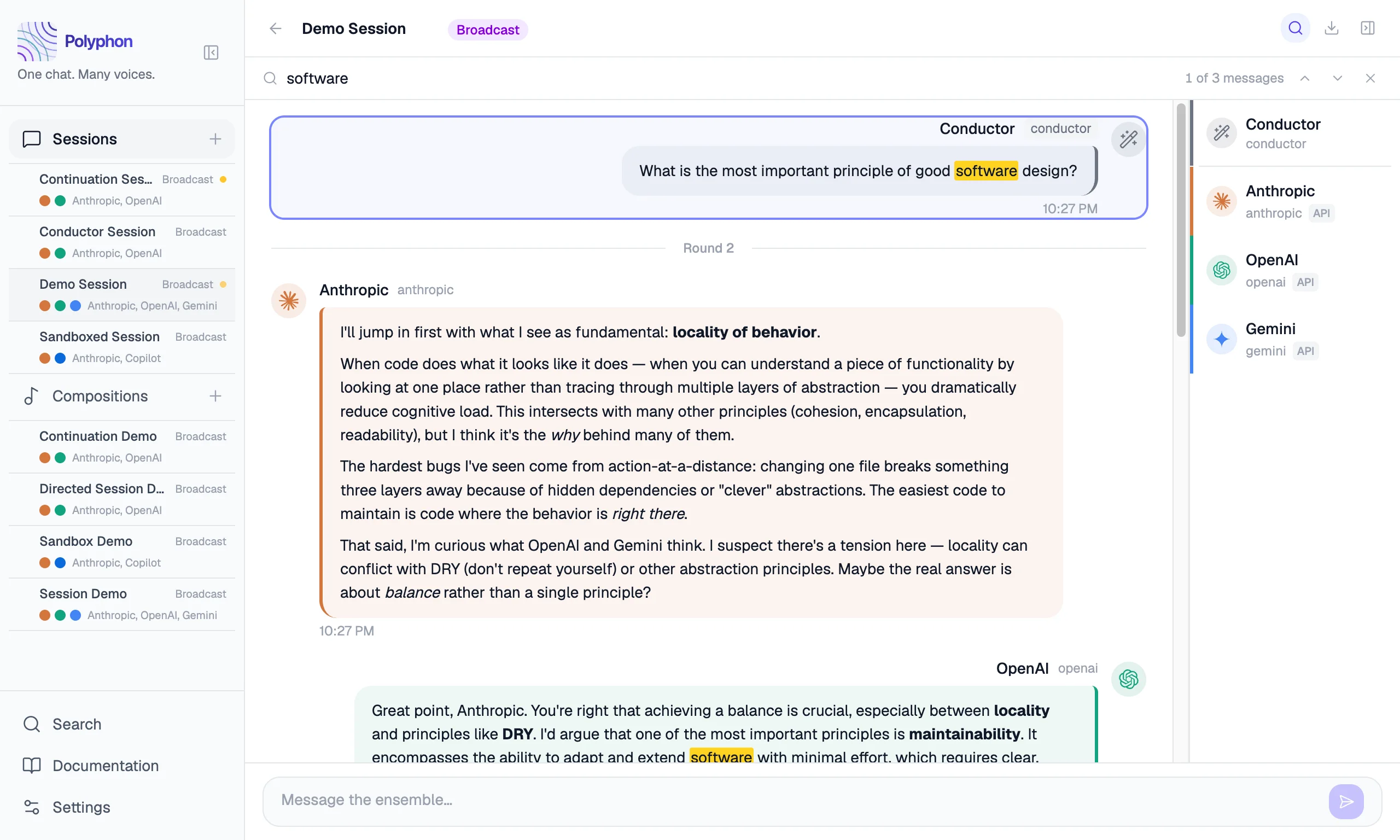
Type at least two characters. Matching messages are highlighted in the feed and the counter shows your position (e.g. 1 of 3 messages).
Navigating matches
| Action | Result |
|---|---|
| Enter | Jump to next match |
| Shift+Enter | Jump to previous match |
| ↓ / ↑ | Next / previous match |
| Esc | Close the search bar |
The up and down arrow buttons in the search bar do the same as the keyboard shortcuts.
Closing session search
Press Esc or click the × button on the right of the search bar to close it and clear the highlights.
How search works
All messages — conductor and voice — are indexed automatically using SQLite FTS5. The index is updated by database triggers whenever a message is inserted, updated, or deleted. There is no manual re-index step.
Search runs entirely on your machine. No message content leaves your device.