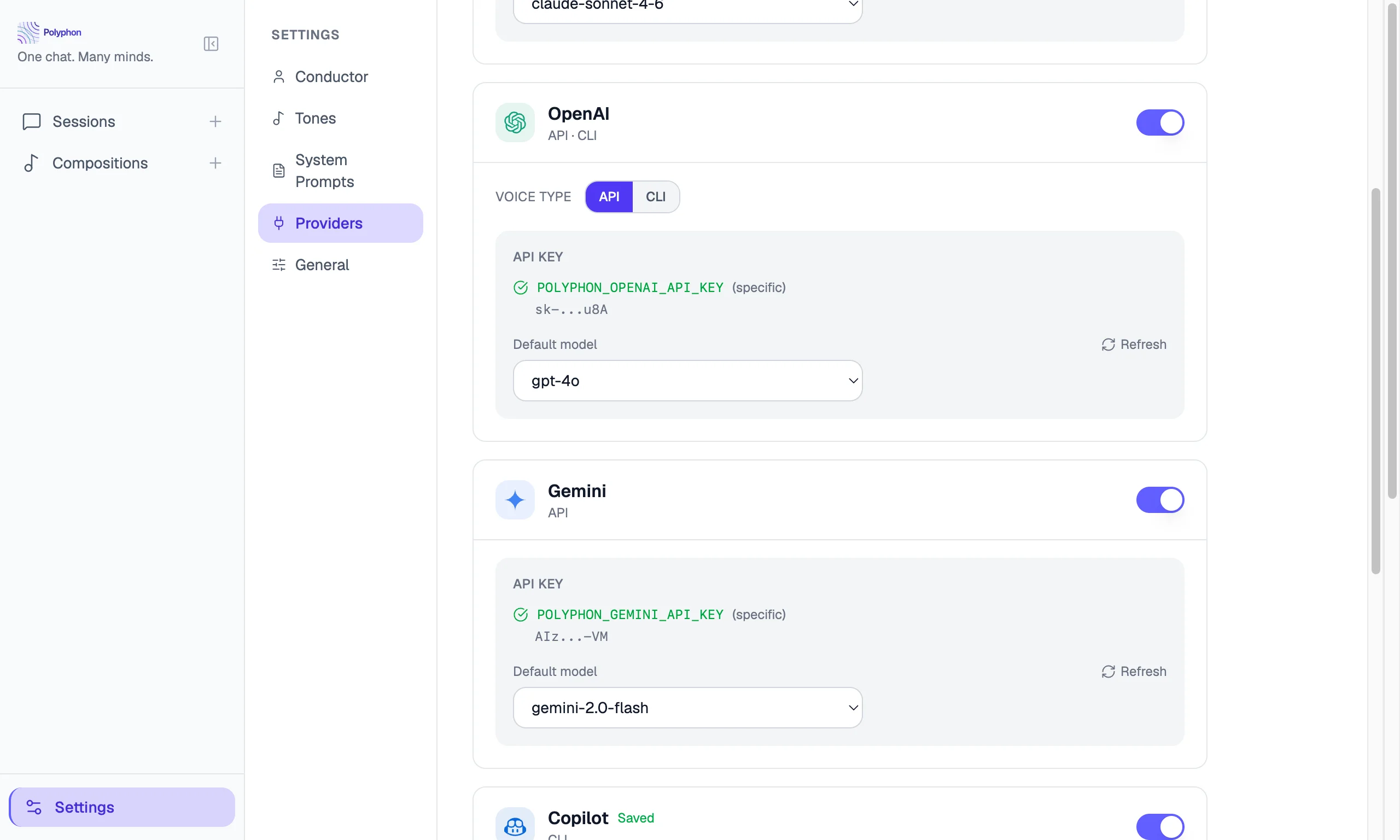

Polyphon supports two categories of voice providers: API voices that communicate with a remote model using an API key, and CLI voices that spawn a local command-line tool as a subprocess.
API Providers
Anthropic (Claude)
API key variable: ANTHROPIC_API_KEY or POLYPHON_ANTHROPIC_API_KEY
Available models: Claude Opus 4.6, Claude Sonnet 4.6, Claude Haiku 4.5, and others
To configure:
- Get an API key from console.anthropic.com.
- In Polyphon, go to Settings → Anthropic and paste your API key.
- Click Test to verify the key is working.
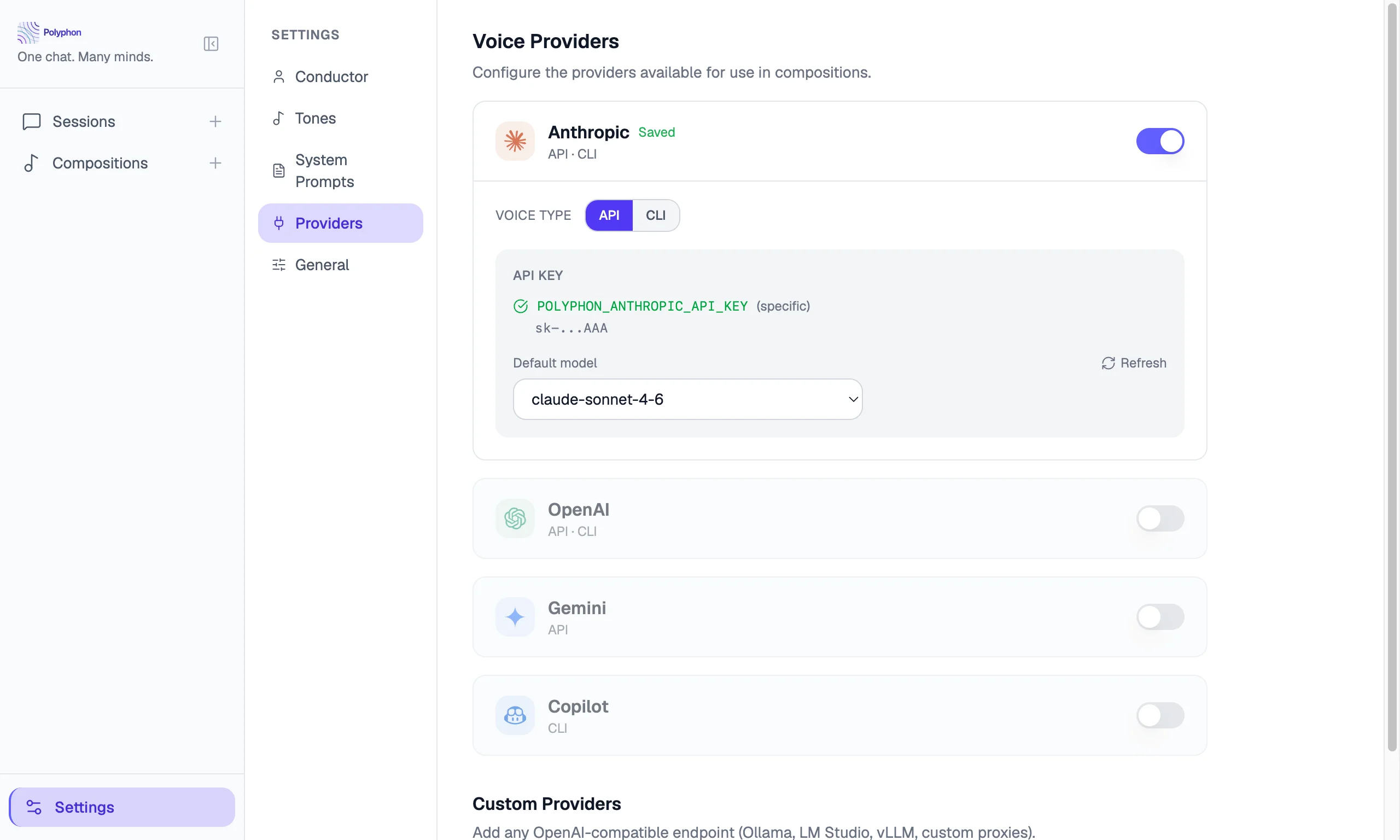
Alternatively, set the key in your shell environment (~/.zshrc or ~/.bash_profile) as ANTHROPIC_API_KEY. Polyphon reads your login shell environment at startup, so keys set there are automatically picked up.
OpenAI (GPT)
API key variable: OPENAI_API_KEY or POLYPHON_OPENAI_API_KEY
Available models: GPT-4o, GPT-4o Mini, GPT-4 Turbo, and others
To configure:
- Get an API key from platform.openai.com.
- In Polyphon, go to Settings → OpenAI and paste your API key.
- Click Test to verify.
Google (Gemini)
API key variable: GOOGLE_API_KEY or POLYPHON_GOOGLE_API_KEY
Available models: Gemini 2.0 Flash, Gemini 1.5 Pro, Gemini 1.5 Flash, and others
To configure:
- Get an API key from aistudio.google.com.
- In Polyphon, go to Settings → Google and paste your API key.
- Click Test to verify.
CLI Providers
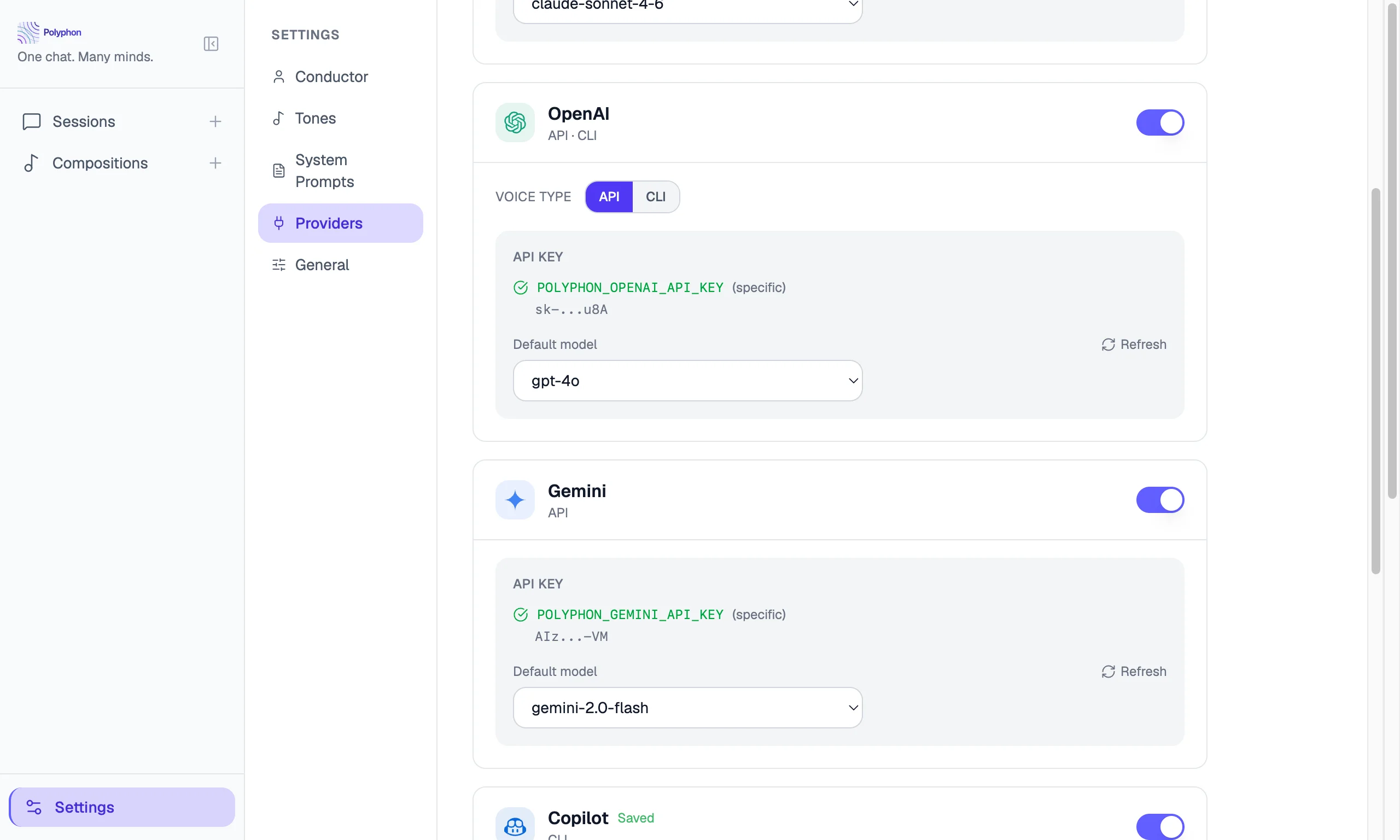
CLI voices run a local command-line tool as a subprocess. No additional API key configuration is needed in Polyphon — the CLI tool manages its own authentication.
Claude CLI (claude)
The Claude CLI is Anthropic’s official command-line interface.
Requirement: claude must be in your system PATH and authenticated.
To verify it is available:
claude --version
In Polyphon, go to Settings → Claude CLI and click Test to confirm Polyphon can find and invoke it.
OpenAI Codex CLI (codex)
Requirement: codex must be in your system PATH and authenticated.
codex --version
GitHub Copilot CLI (copilot)
Requirement: copilot must be in your system PATH and authenticated via the GitHub CLI.
gh copilot --version
API Key Resolution
Polyphon resolves API keys in this order:
- A provider-specific Polyphon variable (e.g.
POLYPHON_ANTHROPIC_API_KEY) - The provider’s canonical variable (e.g.
ANTHROPIC_API_KEY) - A key saved through the Settings UI
API keys are resolved in the main process only and never sent to the renderer or logged. The Settings page shows only a masked representation of the key.
Checking Provider Status
The Settings page shows the status of every configured provider at a glance:
- Available — the key or CLI tool was found and tested successfully
- Key found (untested) — a key is present but has not been tested
- Not configured — no key or CLI tool found
Custom OpenAI-Compatible Providers
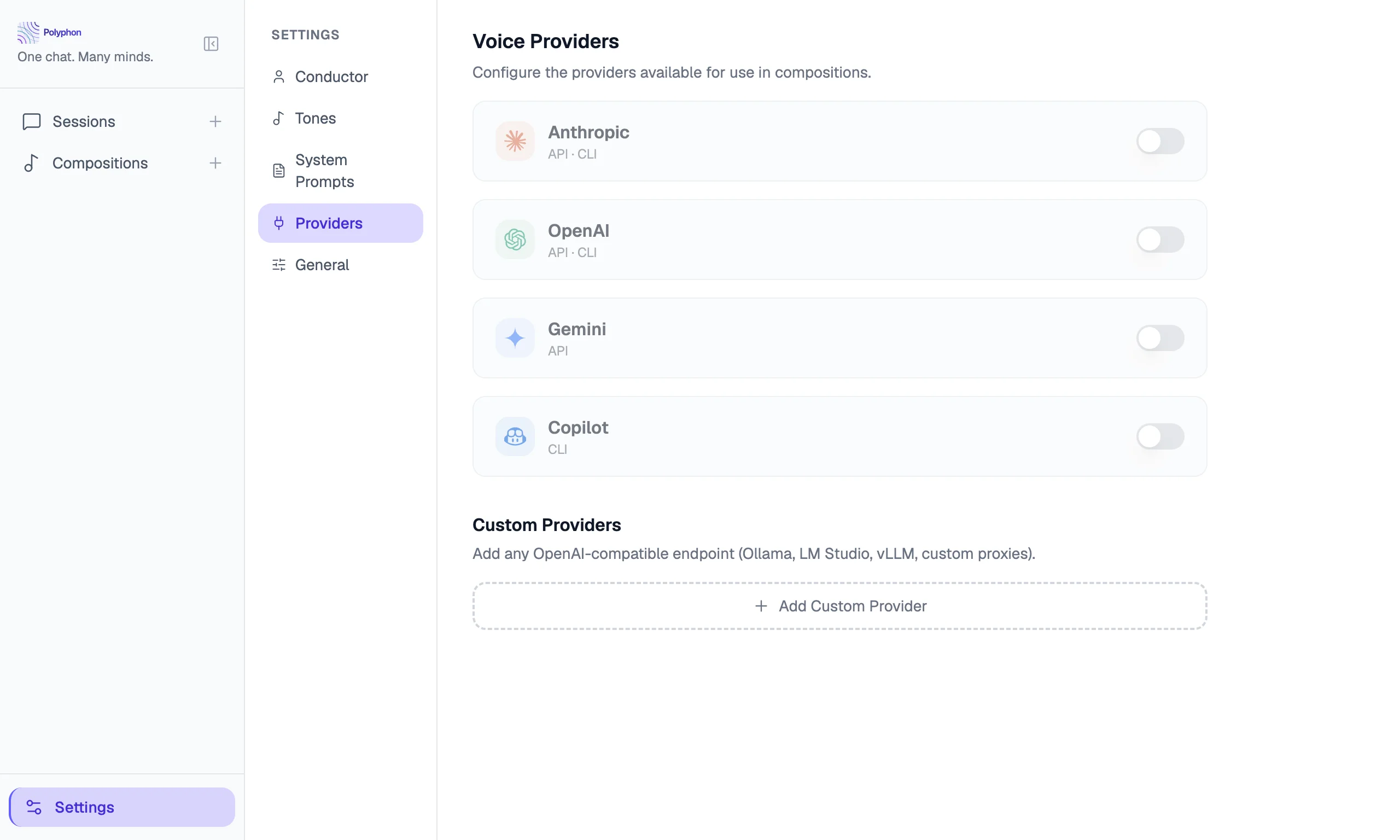
In addition to the built-in providers above, Polyphon supports custom OpenAI-compatible endpoints. Use this to run local models with Ollama or LM Studio, connect to a private inference proxy, or use any service that exposes an OpenAI-compatible API — without modifying Polyphon.
Custom providers are configured in Settings → Custom Providers. Once added, they appear in the Composition Builder voice selector alongside the built-in providers listed above.
See Custom Providers for step-by-step setup instructions, including an Ollama example.