

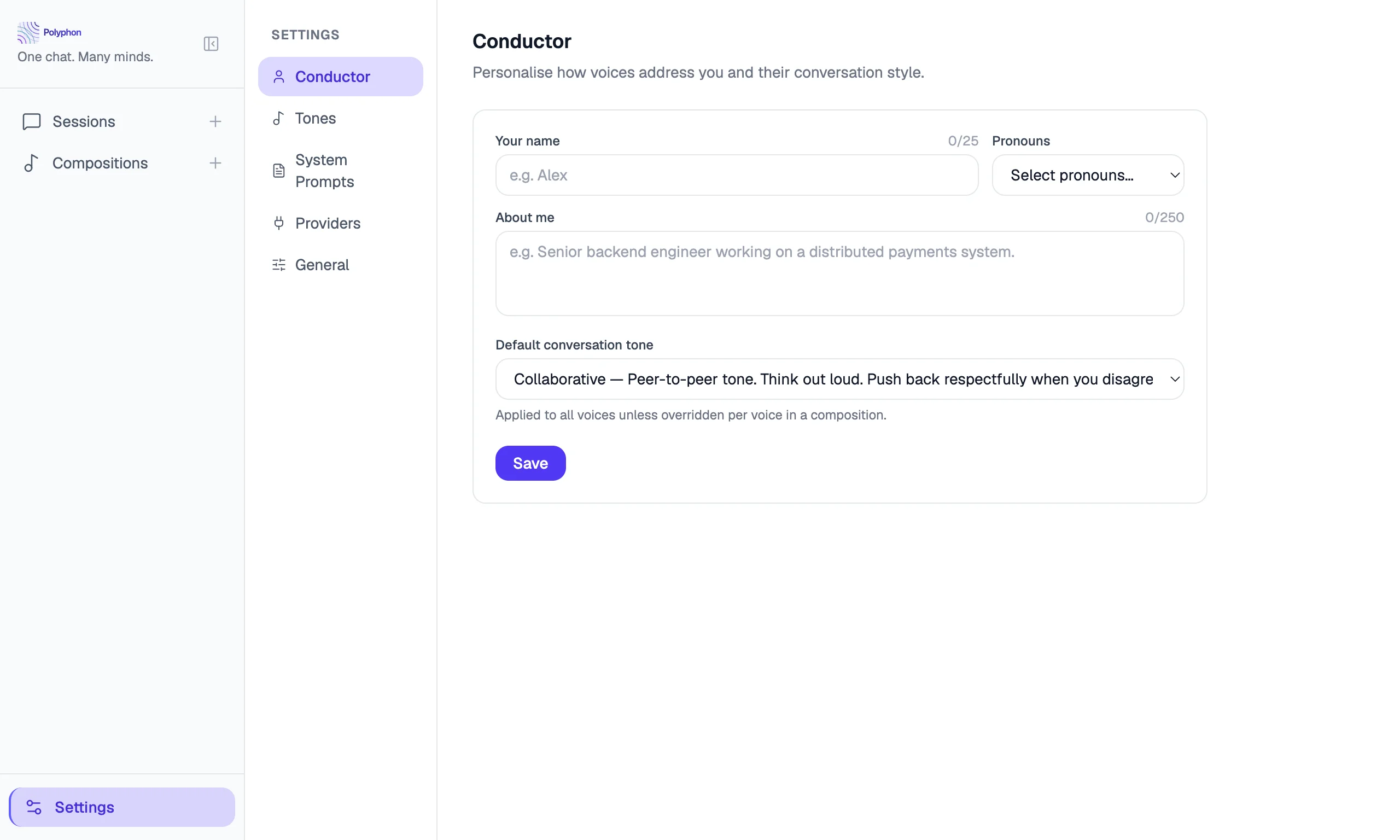
The Settings page lets you configure voice providers, manage tones and system prompt templates, set up your Conductor Profile, and view app information. Open it by clicking the gear icon in the bottom-left corner of the main window.
Settings is organized into tabs: Conductor, Tones, System Prompts, Providers, Encryption, General, Logs, and About.
Provider Settings
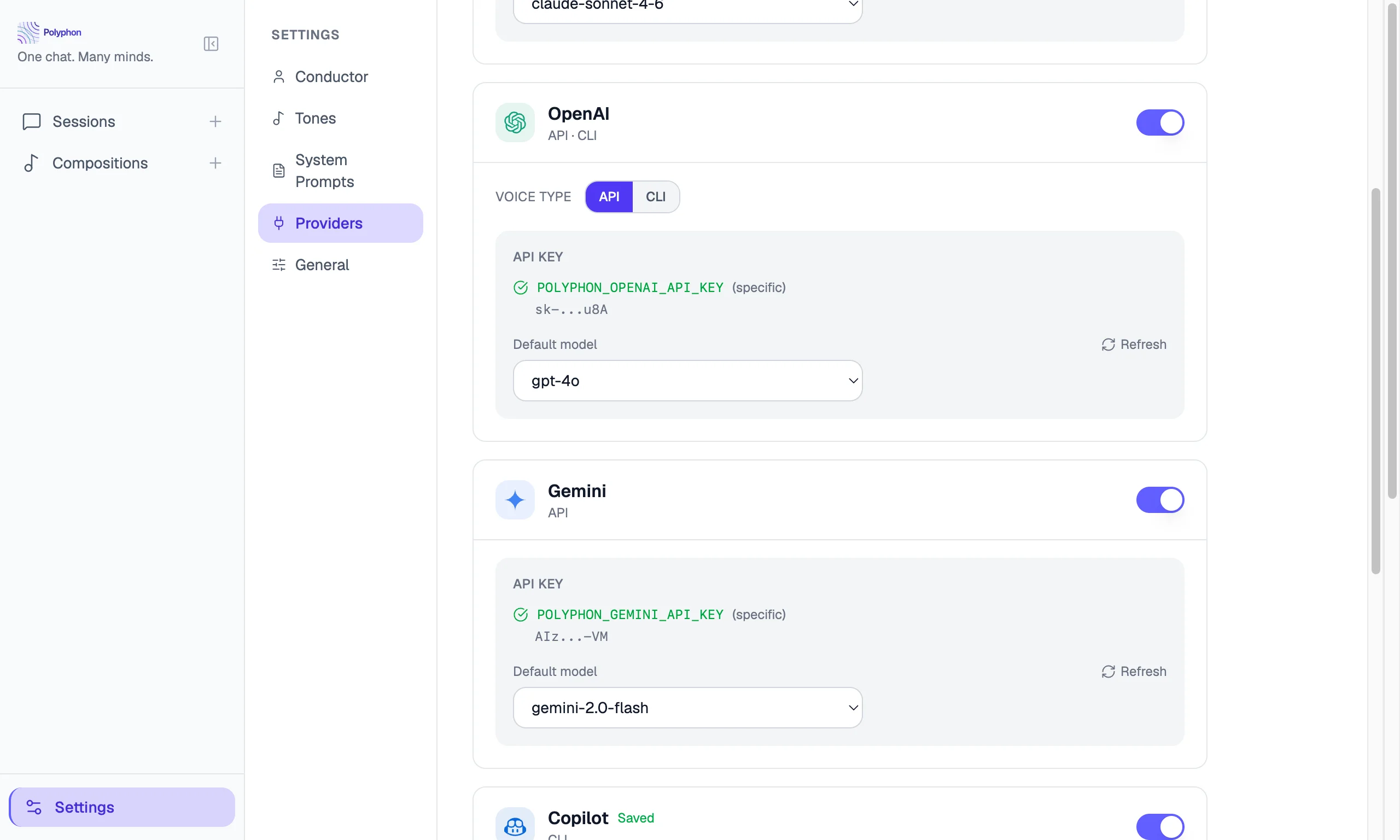
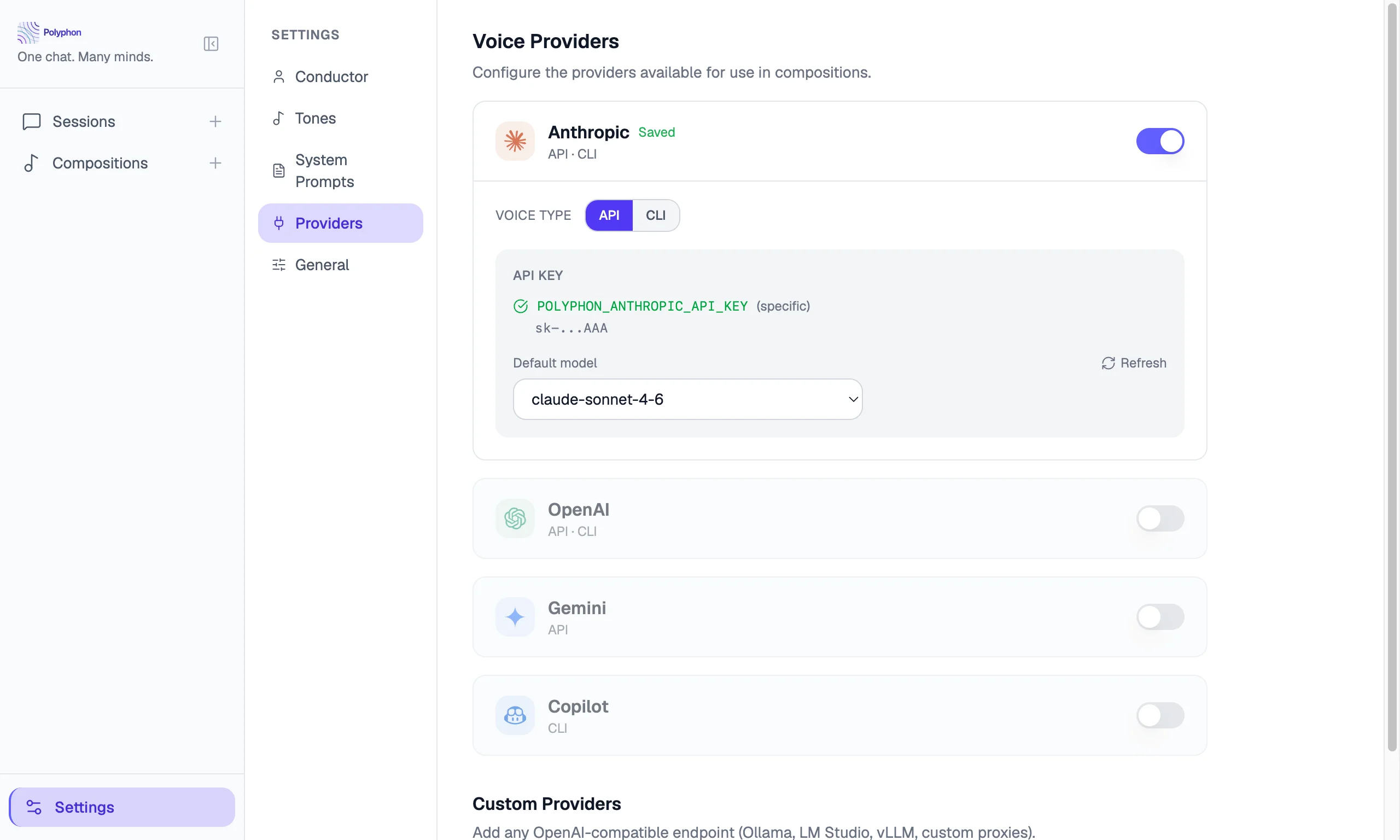
Each supported voice provider has its own settings card. The card shows the provider’s current status and lets you enter or update credentials.
API key providers
For API-based providers (Anthropic, OpenAI, Google), Polyphon reads your API key from environment variables — no key entry UI is required. Set the key in your shell profile (e.g. ~/.zshrc or ~/.bash_profile) and Polyphon will pick it up automatically, even when launched from the Dock.
Polyphon checks two variable names per provider, in order:
| Priority | Variable | Example |
|---|---|---|
| 1 (Polyphon-specific) | POLYPHON_{PROVIDER}_API_KEY | POLYPHON_ANTHROPIC_API_KEY |
| 2 (provider standard) | {PROVIDER}_API_KEY | ANTHROPIC_API_KEY |
If you already have a standard provider key set (e.g. ANTHROPIC_API_KEY), no additional configuration is needed. The Polyphon-specific variable lets you use a different key for Polyphon without affecting other tools.
The Settings page shows whether a key has been detected for each provider.
CLI providers
For CLI-based providers (Claude CLI, Codex, Copilot):
- Expand the provider card.
- Polyphon automatically detects whether the CLI tool is available in your
PATH. - Click Test to confirm Polyphon can invoke the tool.
If the CLI tool is not found, install it following the provider’s official instructions and ensure it is on your PATH.
Polyphon invokes the CLI using whatever configuration you already have set up for it — existing auth, default models, and preferences all apply. You can also add flags in the Extra arguments field to override behaviour for Polyphon specifically, such as selecting a different model (e.g. --model claude-opus-4-5).
Model Selection
For API providers, you can select which model to use as the default when adding a voice from that provider. You can also override the model on a per-voice basis within a composition.
Click Fetch Models to retrieve the current list of available models from the provider’s API.
Custom Providers
The Custom Providers tab lets you add and manage OpenAI-compatible voice endpoints — such as a local Ollama instance, LM Studio, or a private inference proxy. Once added, a custom provider appears in the Composition Builder alongside built-in providers.
See Custom Providers for the full setup flow.
Tones
The Tones tab lets you create and manage tone presets — reusable voice-behavior configurations that shape how a voice communicates. Polyphon ships five built-in tones (Professional, Collaborative, Concise, Exploratory, Teaching), which can be edited and deleted.
See Tones for details on creating custom tones and assigning them to voices.
System Prompt Templates
The System Prompt Templates tab lets you create and manage system prompt templates — saved, reusable system prompts that can be attached to any voice in a composition.
See System Prompt Templates for details on creating templates and attaching them to voices.
Conductor Profile
The Conductor Profile tab stores information about you that is shared with all voices — your avatar, name, pronouns, background context, and default tone. See Conductor Profile for the full details.
Encryption
The Encryption tab lets you manage how Polyphon protects sensitive data stored in its local database.
How it works
Polyphon uses SQLCipher — SQLite with AES-256 whole-database encryption. When you first launch the app, a 256-bit key is generated and stored in polyphon.key.json in the app data directory. The key is used to open the database; every page on disk is encrypted, including indexes and metadata. By default the key is stored directly in that file, protected only by filesystem permissions. You can optionally set a password to wrap the key with an additional layer of encryption.
This all happens automatically with no user action required. Every row in every table — messages, sessions, compositions, profiles, API keys, and settings — is encrypted.
Setting a password
Setting a password encrypts the key file itself using a key derived from your password via scrypt. On every subsequent startup a small unlock window will appear before the main window.
- Open Settings → Encryption.
- Click Set password and enter a password twice to confirm.
- Click Save.
Your database key never changes when you set, change, or remove a password — only the wrapping changes, so all existing encrypted data remains readable.
Warning: If you forget your password, your encrypted data is unrecoverable. There is no reset or recovery mechanism.
Changing or removing a password
- Change password — enter your current password and the new one, then click Save.
- Remove password — enter your current password and click Remove password. The key reverts to unprotected storage and the unlock window no longer appears on startup.
Logs
The Logs tab lets you view recent application log entries, enable verbose debug logging, copy log file paths, and export the debug log.
See Logging for the full details.
About
The About tab shows information about your current installation and lets you manage updates.
Updates
Polyphon checks for updates automatically on startup and notifies you with a banner at the top of the window when one is available. You can also check manually:
- Open Settings → About.
- Click Check for updates.
When an update is found you have three options:
- Update Now — downloads the update in the background. A progress bar appears during the download. When complete, a Restart & Install button replaces the banner — click it to apply the update immediately, or close the banner to install on next restart.
- Remind me later — dismisses the banner for 24 hours (also what the × button does).
- Skip this version — permanently dismisses the banner for this specific release. The next release will prompt you again.
Update channel
The Update channel selector controls which releases Polyphon notifies you about:
| Channel | What you receive |
|---|---|
| Stable | Finished, well-tested releases only |
| Preview | Stable releases plus alpha and beta pre-releases |
Switch to Preview if you want early access to new features. You can switch back to Stable at any time.
Other information
- Version — the installed version number
- Documentation — a link to polyphon.ai/docs
- Community links — file a bug, request a feature, join the discussion, report a vulnerability (all link to GitHub)
- Social — link to @PolyphonAI on X
Data Location
Polyphon stores all data locally. The database and encryption key files are located at:
~/Library/Application Support/polyphon/
Inside that directory:
| File | Contents |
|---|---|
polyphon.db | Your sessions, messages, compositions, API keys, and settings |
polyphon.key.json | The encryption key (unprotected by default, or password-wrapped if you set a password) |
Back up both files together to preserve your data and maintain the ability to decrypt it.
Telemetry
Polyphon does not collect or transmit usage data by default. There is no analytics, no crash reporting, and no network activity beyond the API calls you explicitly trigger by sending messages.