

A session is a live conversation with one or more voices. This page covers how to start, use, and manage sessions.
Starting a New Session
Click the + button at the top of the sidebar to open the new session panel.
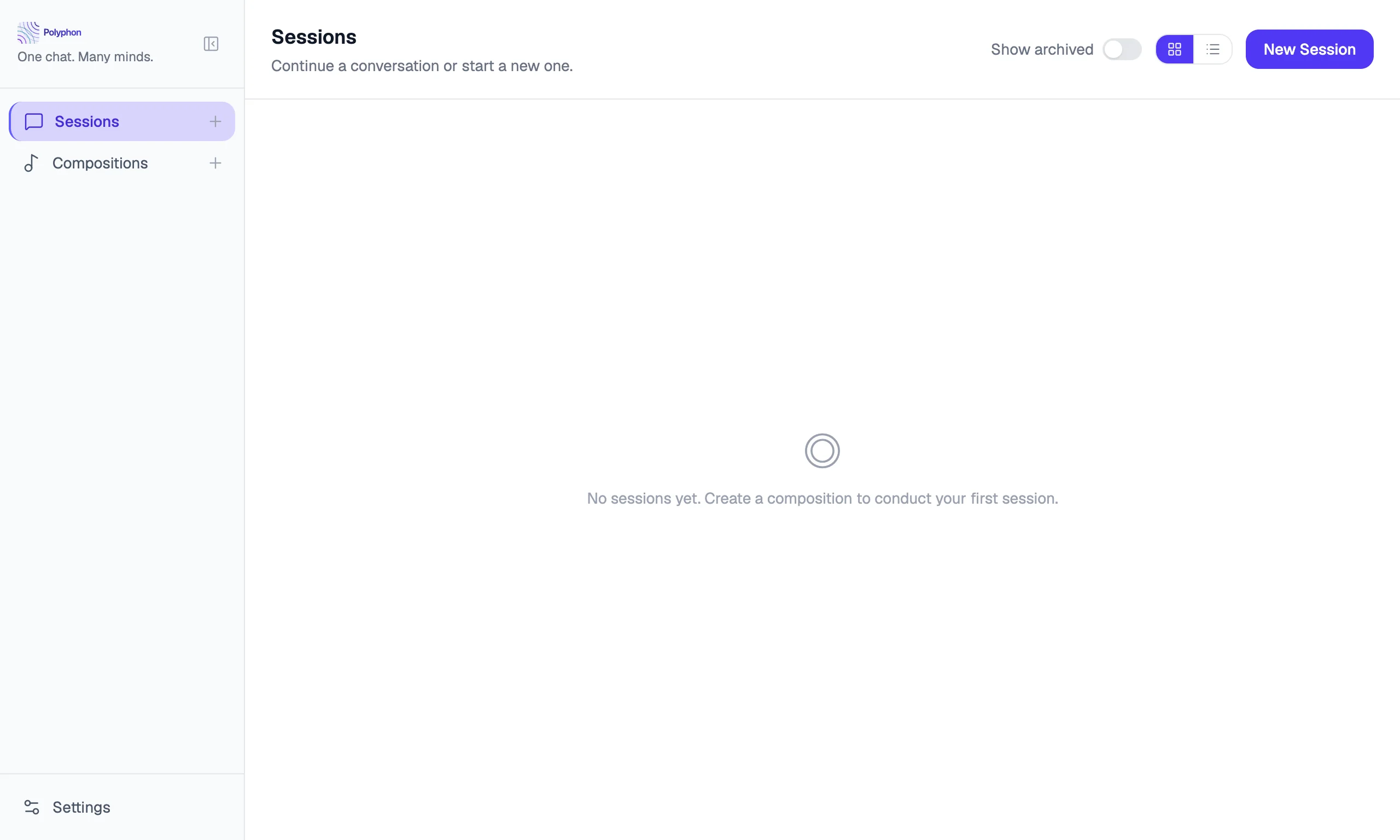
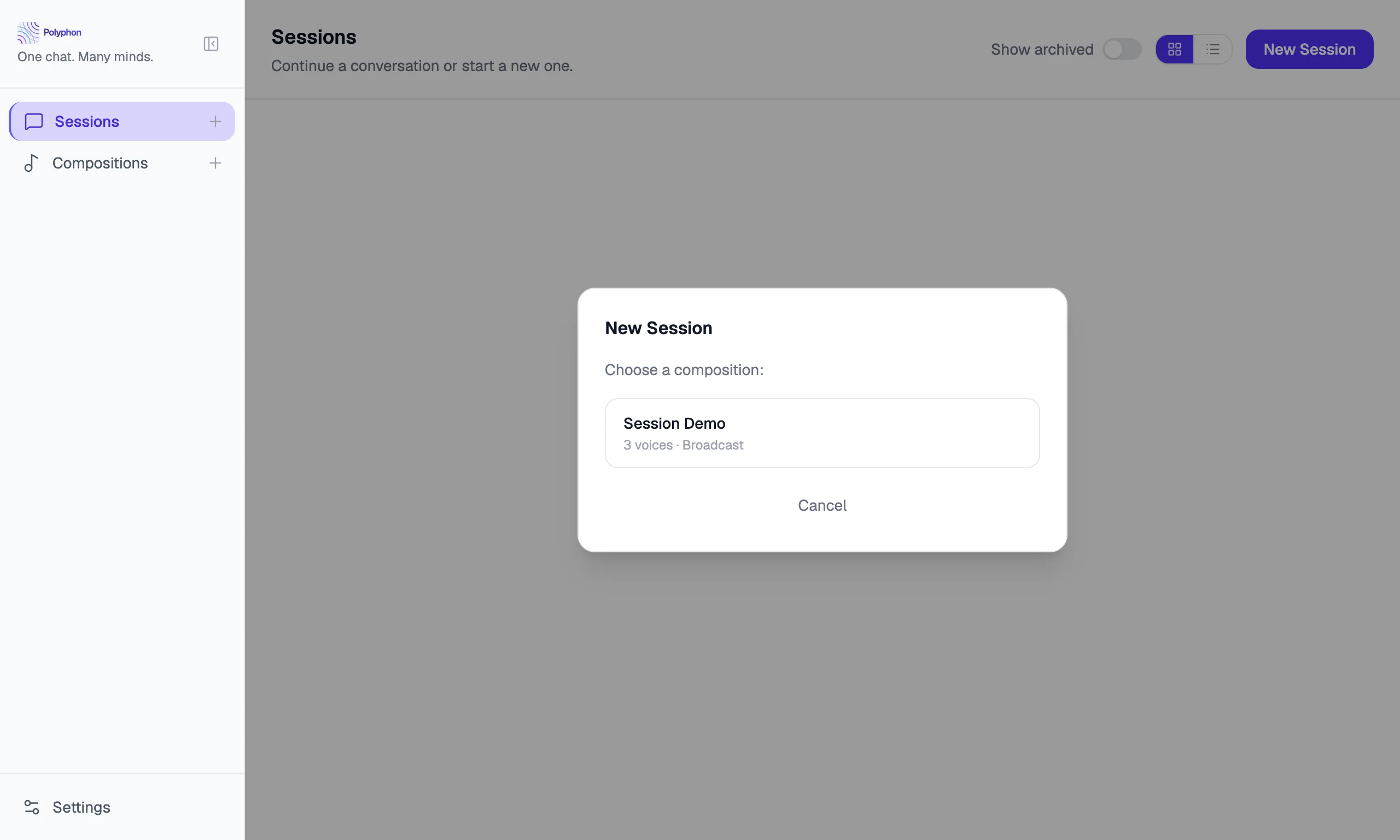
Select a saved composition from the list, give the session a name, optionally set a working directory, and click Start Session.
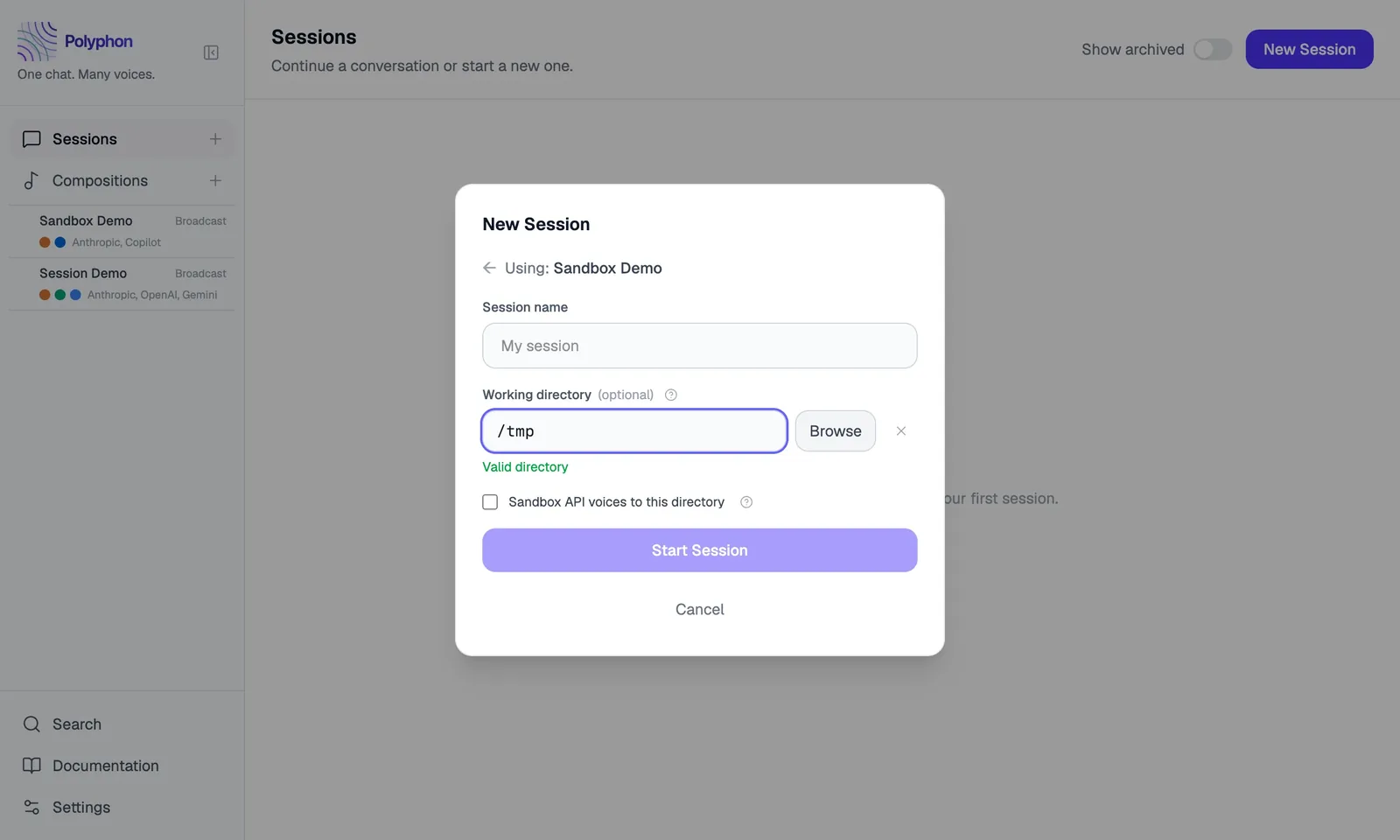
Working Directory
When creating a session you can optionally choose a working directory from your machine using the Browse button. If set:
- CLI voices (claude, codex, copilot) are spawned with that directory as their working directory.
- All voices receive the path in their ensemble system prompt so they have context about which project they are working in.
The working directory is shown in the session header next to the mode badge. It is stored encrypted and never leaves your machine.
Sandboxing API Voices
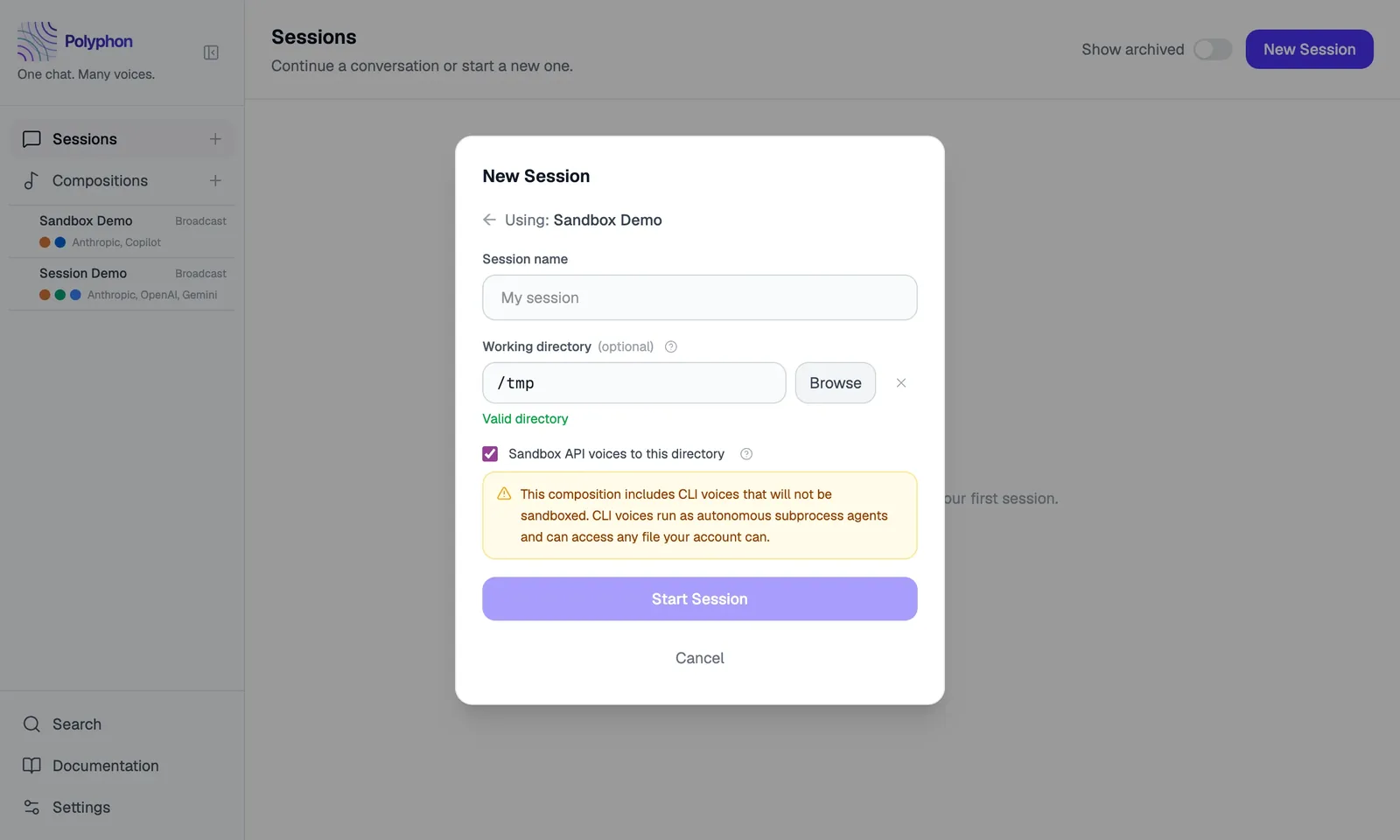
When a working directory is set, a Sandbox API voices to this directory checkbox appears in the new session panel.
When enabled, all file path arguments from API voice tool calls are resolved relative to the working directory. Any path that would escape outside the directory (e.g. via ../) is blocked. This limits API voice file access to the project you are working on.
The session header shows a green Sandboxed badge when sandboxing is active.
CLI voices are not affected — they run as autonomous subprocess agents and manage their own file access. If your composition includes CLI voices and you enable sandboxing, an amber warning explains this.

See Filesystem Tools for details on the tools that can be sandboxed and how sandboxing works.
The Session View
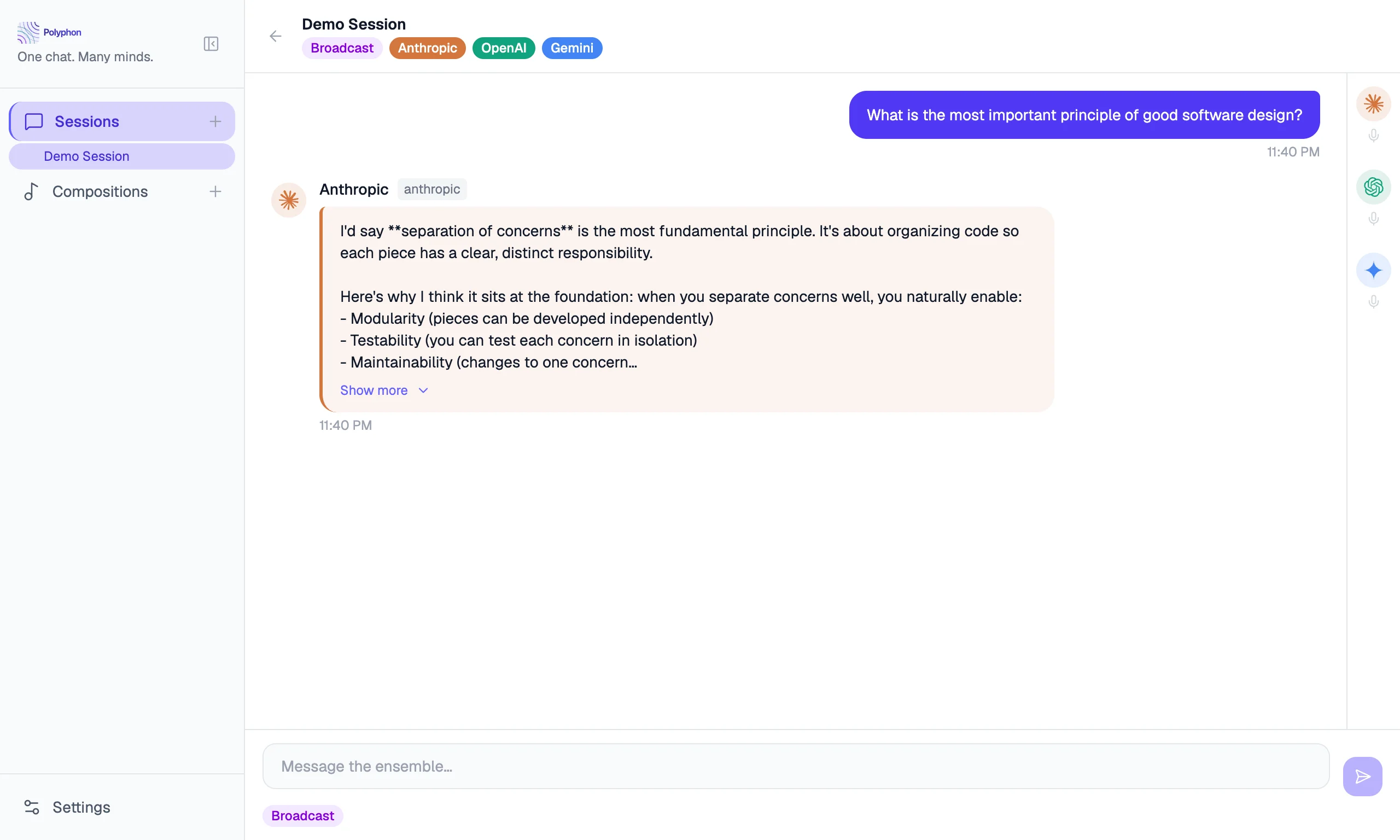
Once a session starts, you see the session view:
- Message feed — the full conversation history, with messages grouped by round. Each voice’s messages show the voice’s avatar icon and color.
- Voice panel — shows each active voice, its avatar icon, and its current status (waiting, generating, done, error)
- Input bar — where you type and send messages
Sending a Message
Type your message in the input bar at the bottom and press Enter (or Shift+Enter for a newline). Your message is sent to all active voices simultaneously.
Each voice’s response streams in as it is generated. You can read responses as they arrive — you don’t have to wait for all voices to finish before reading.
Broadcast vs. Conductor-Directed Mode
Sessions have two modes, selectable from the voice panel header:
Broadcast mode — your message goes to every voice. This is the default.
Conductor-directed mode — direct your message to a specific voice. The other voices see the exchange but stay silent.
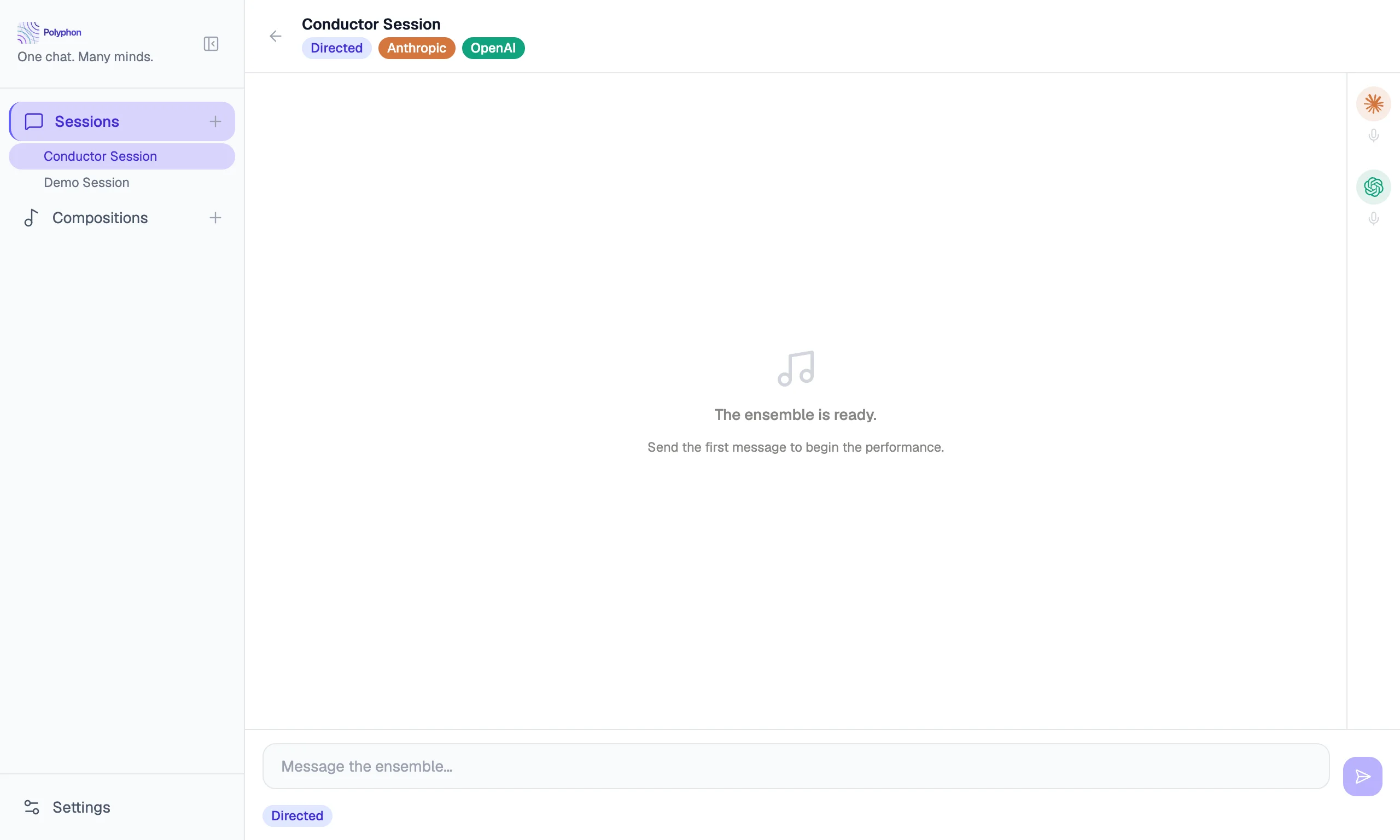
The current mode is shown as a badge in the session header: Broadcast or Directed.
Targeting a voice in conductor-directed mode
There are two ways to target a voice in conductor-directed mode:
- Click the voice in the voice panel. The selected voice is highlighted.
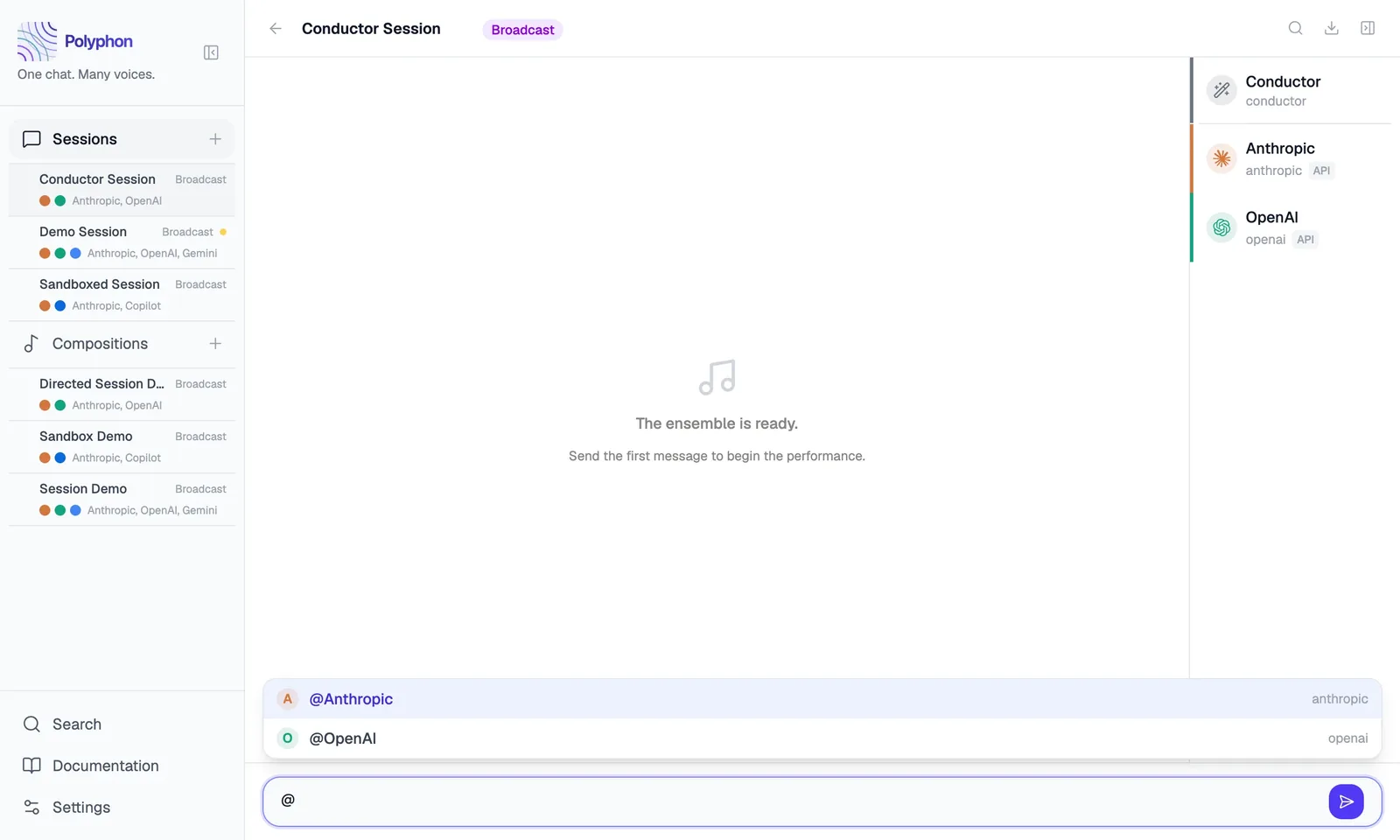
- Type
@in the message input to open a voice picker dropdown. The dropdown lists all active voices by display name. Select a voice from the dropdown to direct your next message to that voice; the voice panel updates to highlight the selection.
Continuation Rounds
The continuation policy is set on the composition, not on individual voices. It controls what happens after each round of responses. There are three modes:
None — voices respond once and wait. This is the default for new compositions.
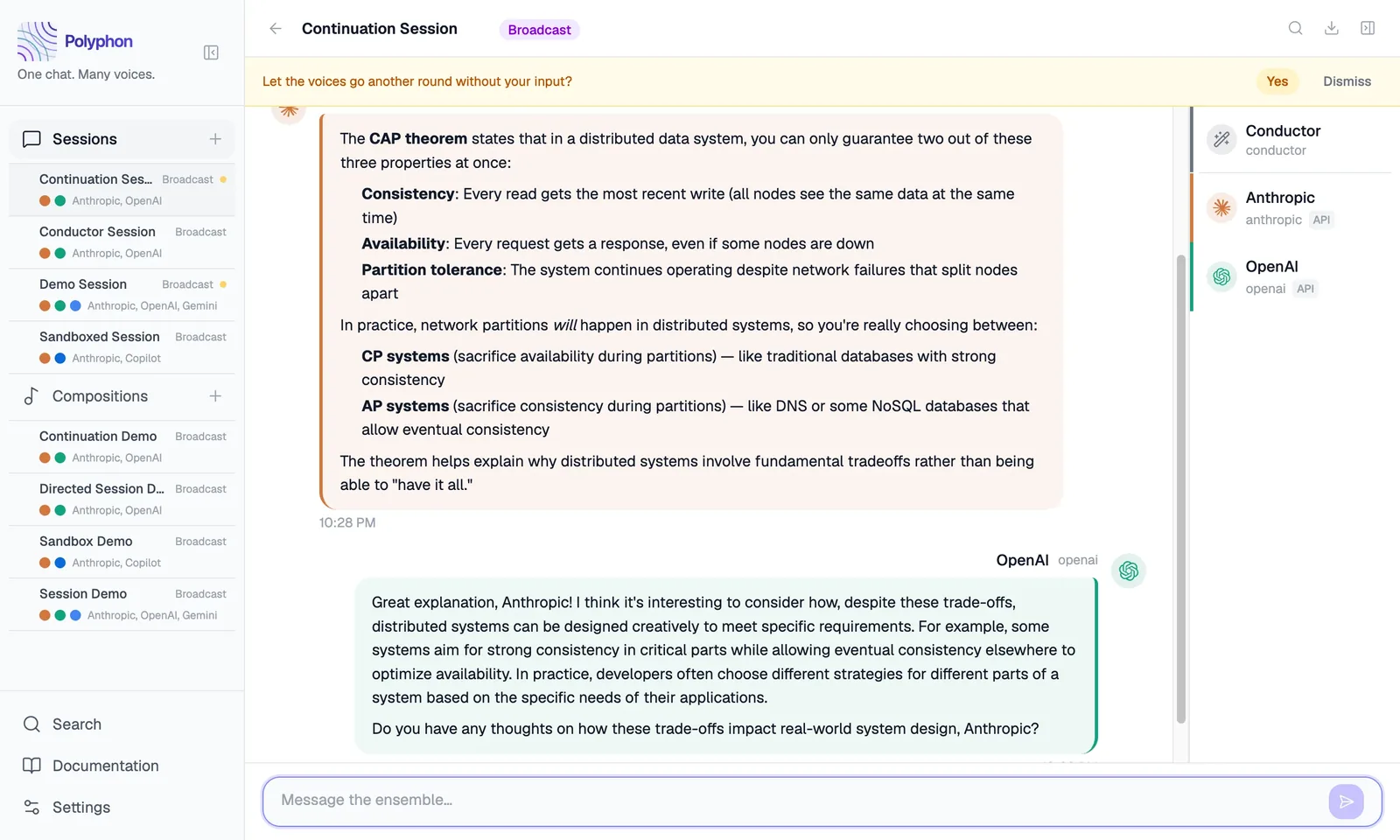
Prompt me — after each round completes, a banner appears asking “Let the voices go another round without your input?” Click Yes to start the next round, or Dismiss to stop.
Auto — voices continue responding automatically up to the configured max rounds (1–3). A round divider appears in the message feed each time a new round starts.
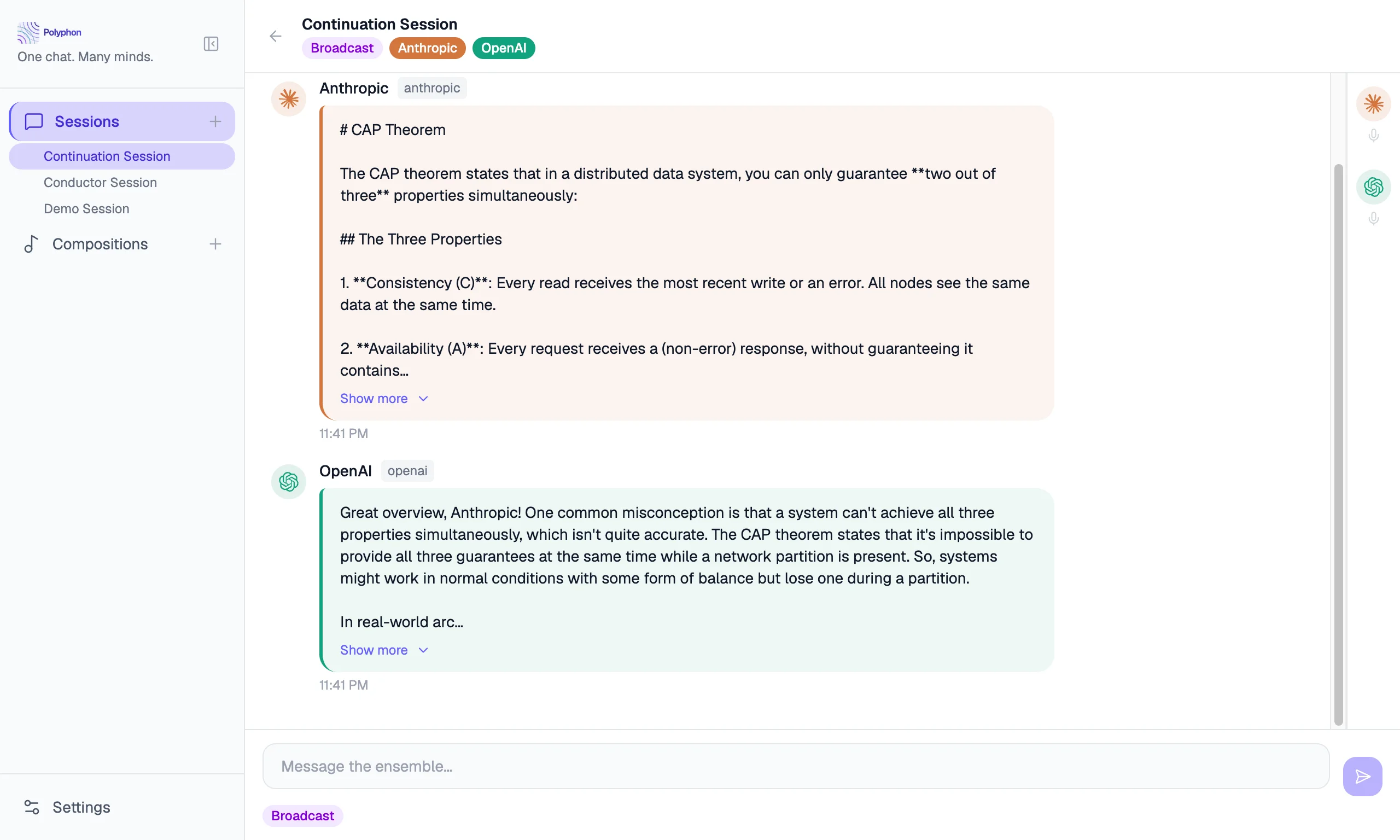
See Compositions → Continuation Policy for how to configure these modes.
Aborting a Response
If a voice is taking too long or you want to stop a response mid-stream, click the Stop button that appears next to the voice while it is generating.
Exporting a Transcript
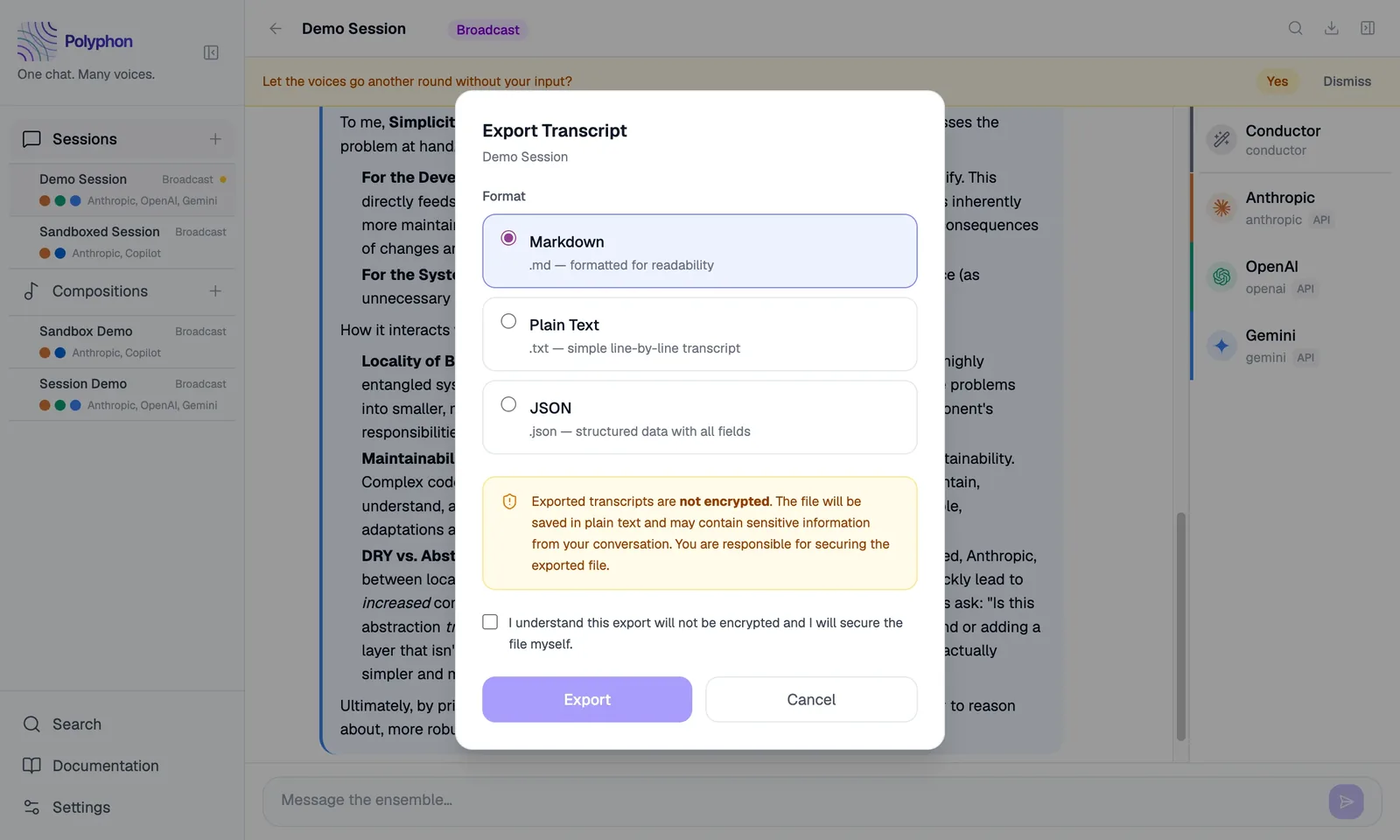
To save a copy of the session conversation, click the Export button in the session header. A dialog opens with three format options:
- Markdown — formatted text with speaker labels, timestamps, and fenced code blocks. Suitable for pasting into documents or viewing in any markdown reader.
- JSON — raw message data including metadata. Suitable for programmatic processing.
- Plain text — unformatted transcript without markup. Suitable for pasting into plain editors.
After selecting a format, a save dialog opens and you choose where to save the file on your machine.
Note: Exported transcript files are not encrypted. The session content is written in plaintext to wherever you save it. Keep this in mind when sharing or storing transcripts that contain sensitive information.
Session History
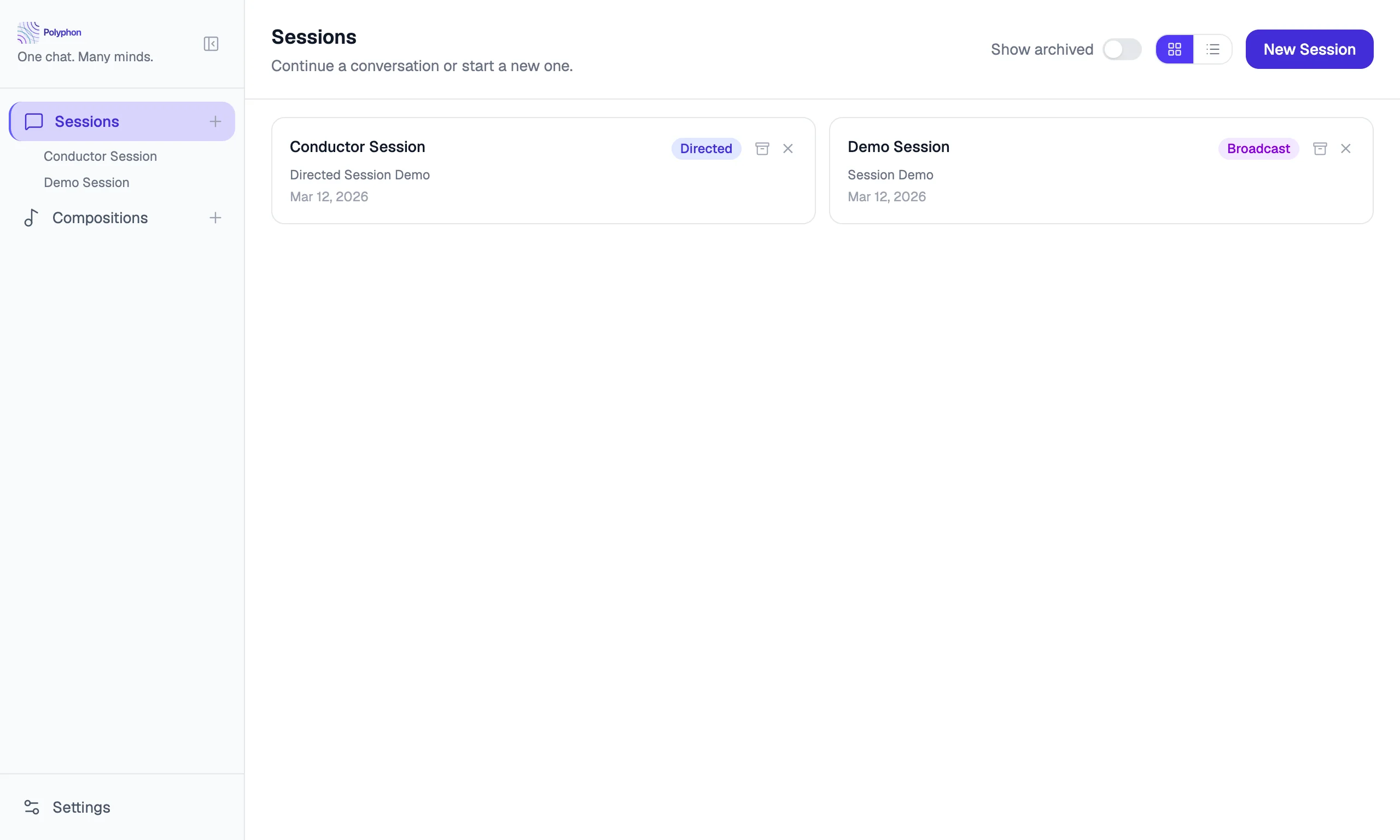
All messages in a session are saved automatically to your local database. To view past sessions, scroll through the sidebar — sessions are listed chronologically.
Archiving Sessions
To hide a session from the sidebar without deleting it, right-click the session in the sidebar and select Archive. Archived sessions are not shown by default but can be retrieved if needed.
Managing Sessions with poly
If you have the poly CLI installed and the API server enabled, you can manage sessions from the terminal.
Create a session
# Basic — uses today's date as the session name
poly sessions new --composition <id>

# With a name
poly sessions new --composition <id> --name "PR #42 review"

# With a working directory (passed to filesystem tools)
poly sessions new --composition <id> --name "Repo review" --working-dir /path/to/repo

# With sandboxing enabled (restricts filesystem tools to the working directory)
poly sessions new --composition <id> --name "Sandboxed" --working-dir /path/to/repo --sandbox

# Output the full session object as JSON (useful for scripting)
poly sessions new --composition <id> --name "CI run" --format json
List, inspect, export
poly sessions list
poly sessions get <id>
poly sessions messages <id>
poly sessions export <id> --format-output markdown
Full scripting workflow
# 1. Find your composition ID
poly compositions list

# 2. Create a session and capture the ID
SESSION_ID=$(poly sessions new --composition <id> --name "PR review" --format json | jq -r '.id')

# 3. Run prompts
poly run --session $SESSION_ID --prompt "Review this diff" --stream

# 4. Export the transcript
poly sessions export $SESSION_ID --format-output markdown > review.md
See poly CLI for the full command reference.