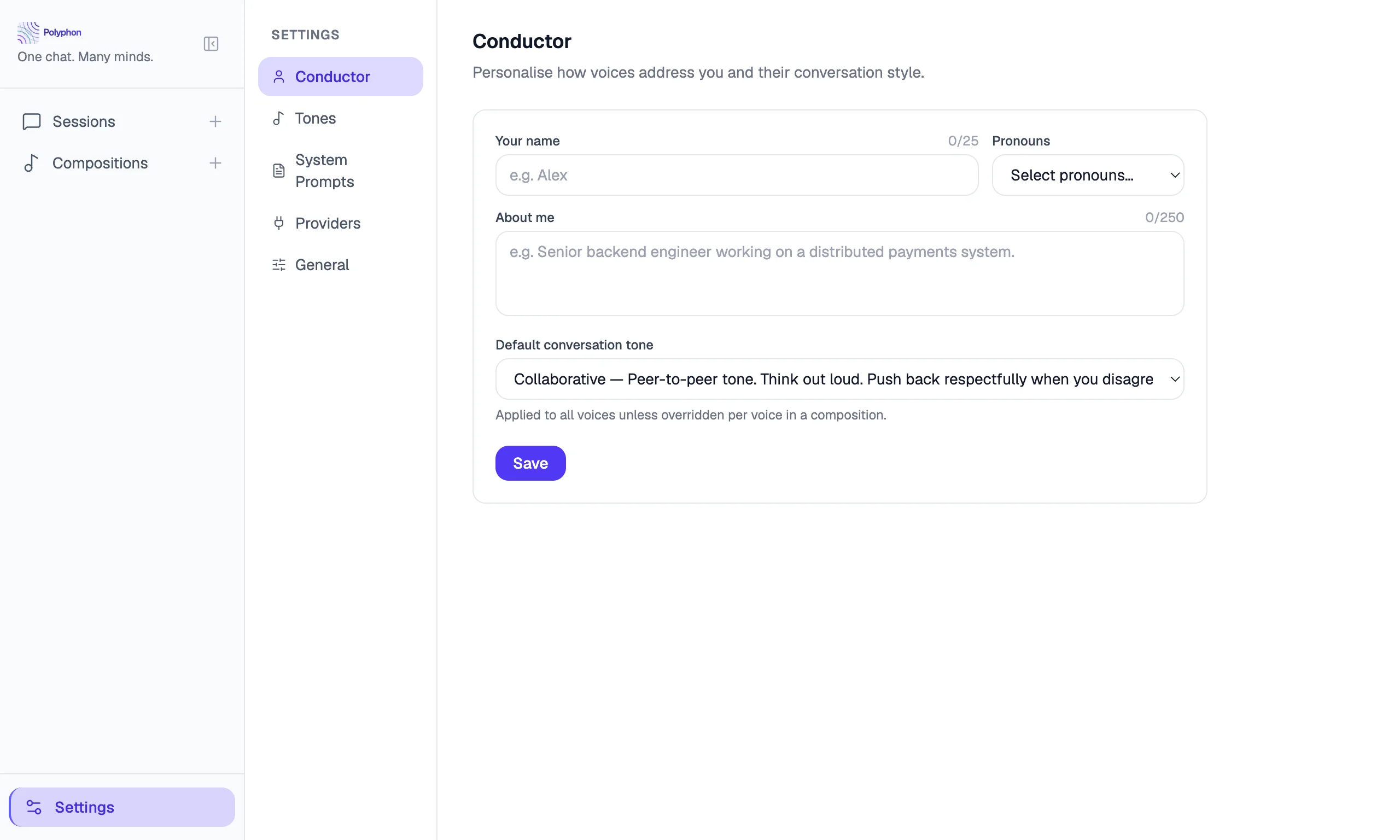

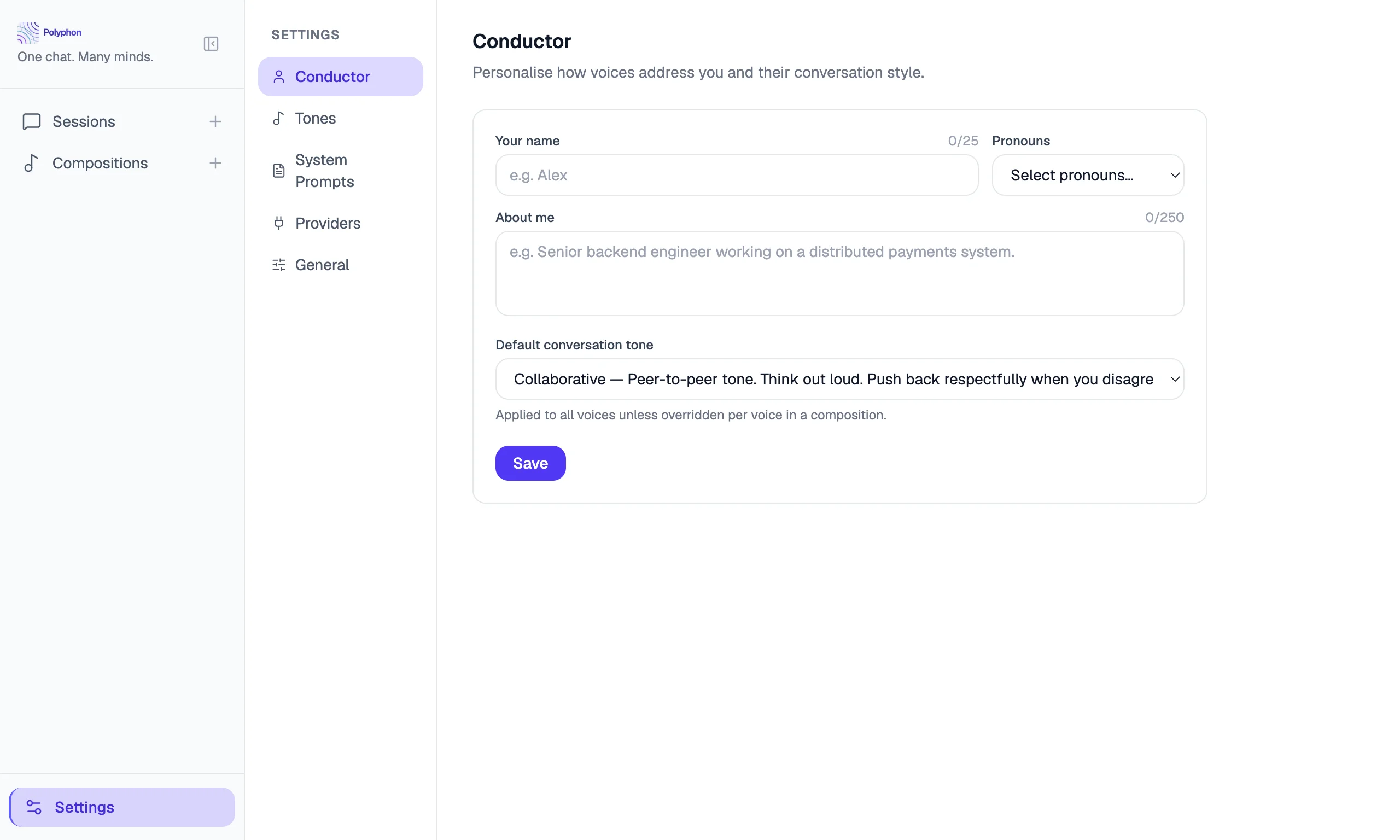
The Conductor Profile is information about you that Polyphon injects into the system prompt of every voice in every session. Set it once, and all your voices will know who they are talking to.
Setting Your Profile
Open Settings (gear icon, bottom-left) and click the Conductor Profile tab.
Avatar
The circular avatar button at the top of the Conductor Profile section shows your photo (or an empty placeholder if none is set). To upload a photo:
- Click the avatar button.
- A file picker opens. Select an image file (PNG, JPG, GIF, or WebP).
- The Avatar Editor opens with your selected image.
In the Avatar Editor you can:
- Drag the image to reposition it within the circular crop area.
- Scroll (or use the zoom slider) to zoom in or out (0.2× to 6×).
- Rotate the image in 90° increments using the rotate buttons.
Click Apply to confirm the crop. The cropped avatar (200×200 px) is saved to your profile and appears next to your name in the sidebar.
To remove your avatar, click the × button on the avatar preview.
Profile Fields
Name
How voices should address you. If left blank, voices will not use a name when addressing you.
Example: Alex
(Max 25 characters)
Pronouns
Your preferred pronouns. Voices will use these when referring to you. Choose from the dropdown or leave blank.
Options: she/her, he/him, they/them, she/they, he/they, ze/zir, xe/xem, any/all, prefer not to say
Background
Free-form context about who you are, your role, or what you typically use Polyphon for. This context is included in every voice’s system prompt so voices can tailor their responses to your background.
Example:
I’m a backend engineer with 10 years of experience, primarily working in Go and Python. I’m currently exploring AI tooling and agent orchestration.
(Max 250 characters)
Default Tone
The tone preset applied to voices that don’t have a specific tone set. Choose from:
| Tone | Description |
|---|---|
| Professional | Formal, precise, business-appropriate |
| Collaborative | Warm, inclusive, builds on your ideas |
| Concise | Brief and direct — minimal words, maximum signal |
| Exploratory | Open-ended, curious, surfaces possibilities |
| Teaching | Patient, explains from first principles |
How the Profile Is Used
When a session starts, Polyphon builds a system prompt for each voice that includes:
- The voice’s own system prompt (if any)
- The ensemble context — who the other voices are in the session
- Your conductor profile (name, pronouns, background, tone)
This means every voice knows who you are and how to communicate with you, without you having to repeat it in every message.
Privacy
Your conductor profile is stored locally in your Polyphon database. It is sent to voice providers as part of the system prompt when you start a session, just as any system prompt would be. It is not shared with anyone else or stored externally.
Auto-save
The Conductor Profile saves automatically when you leave a field (on blur). There is no explicit save button — your changes take effect immediately for the next session you start.