

A custom provider is a user-defined voice endpoint that speaks the OpenAI API protocol. Any service that exposes an OpenAI-compatible API — Ollama, LM Studio, vLLM, or a private proxy — can be added as a custom provider and used in compositions alongside built-in providers.
When to Use a Custom Provider
- You are running a local model with Ollama or LM Studio and want to use it in Polyphon.
- You have a private inference endpoint (vLLM, custom proxy) that is not built into Polyphon.
- You want to use any OpenAI-API-compatible service without modifying Polyphon.
For built-in providers (Anthropic, OpenAI, Google, Claude CLI, Codex, Copilot), see Voice Providers instead.
Adding a Custom Provider
- Go to Settings → Custom Providers.
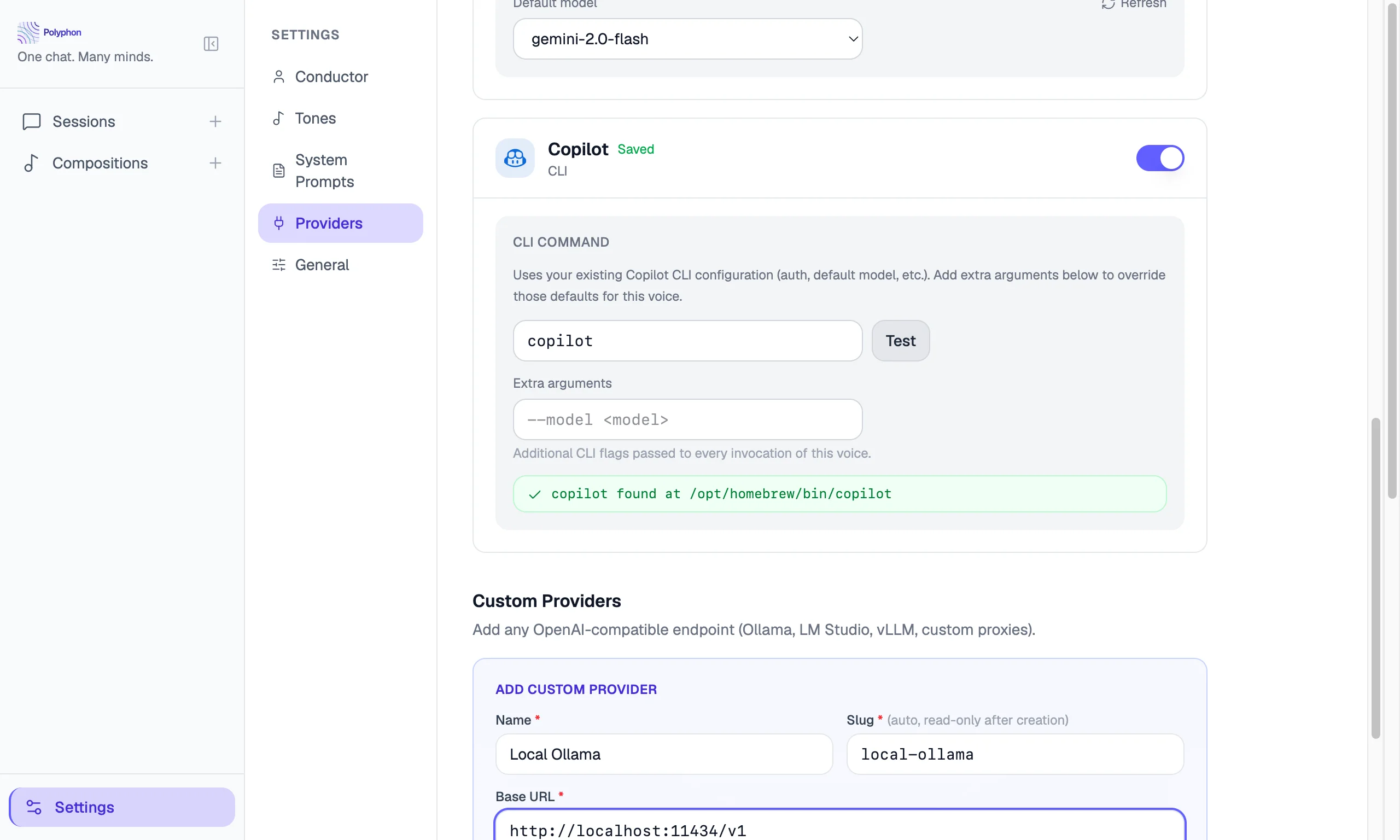
- Click Add Custom Provider.
- Fill in the form:
| Field | Required | Description |
|---|---|---|
| Name | Yes | Display name shown in the UI (e.g. “Local Ollama”) |
| Slug | Yes | URL-safe identifier, auto-generated from the name; read-only after creation |
| Base URL | Yes | The root URL of your OpenAI-compatible endpoint (e.g. http://localhost:11434/v1) |
| API key env var | No | The name of an environment variable that holds the API key for this endpoint. Leave blank if the endpoint requires no authentication. |
| Default model | No | Pre-selected model when adding a voice from this provider |
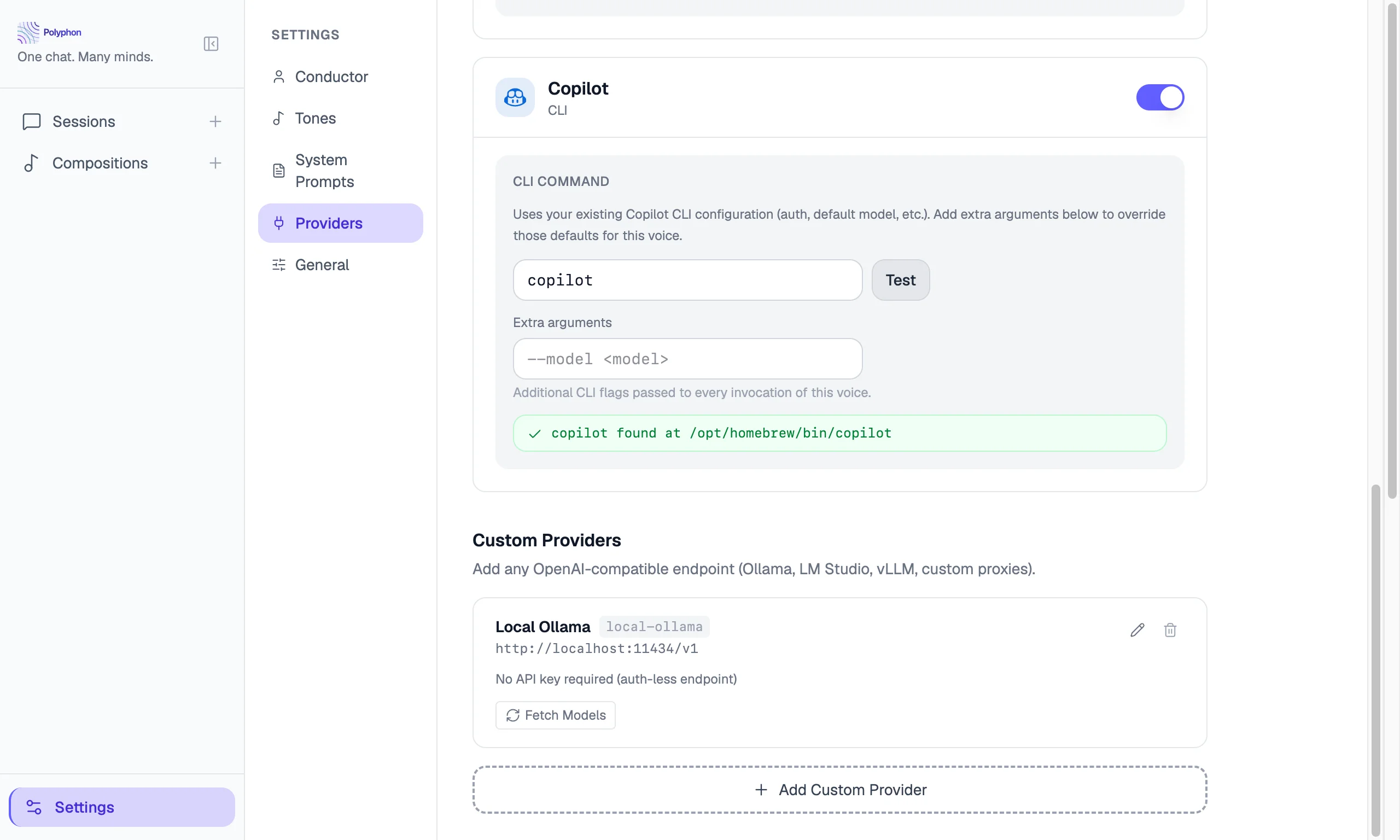
- Click Fetch Models to retrieve the list of available models from the endpoint (requires the endpoint to be running).
- Click Save.
API Key Env Var
Custom providers do not accept a raw API key in the UI. Instead, enter the name of an environment variable that contains the key — for example, MY_PRIVATE_KEY. Polyphon reads the variable from your login shell environment at startup (the same way it resolves built-in provider keys).
If your endpoint requires no authentication (Ollama running locally with default settings), leave the field blank. The status badge on the provider card will show “No API key required (auth-less endpoint)”.
Verification source: src/renderer/components/Settings/SettingsPage.tsx — the field label is “API key env var (optional)”; the CustomProviderApiKeyBadge component renders “No API key required (auth-less endpoint)” when apiKeyEnvVar is empty.
Ollama Setup Example
Ollama runs large language models locally with no API key required.
Install Ollama and pull a model:
ollama pull llama3.2Start the Ollama server (runs automatically after install on macOS):
ollama serveIn Polyphon, go to Settings → Custom Providers → Add Custom Provider:
- Name: Local Ollama
- Base URL:
http://localhost:11434/v1 - API key env var: (leave blank)
- Default model:
llama3.2
Click Fetch Models to confirm Polyphon can reach the endpoint, then click Save.
Editing and Removing Custom Providers
On any custom provider card in Settings → Custom Providers:
- Click Edit to update the name, base URL, API key env var, or default model. The slug cannot be changed after creation.
- Click Delete to remove the provider. Deletion is a soft-delete — the provider is hidden but voices in existing compositions that reference it continue to work in sessions already started.
Using a Custom Provider Voice in the Composition Builder
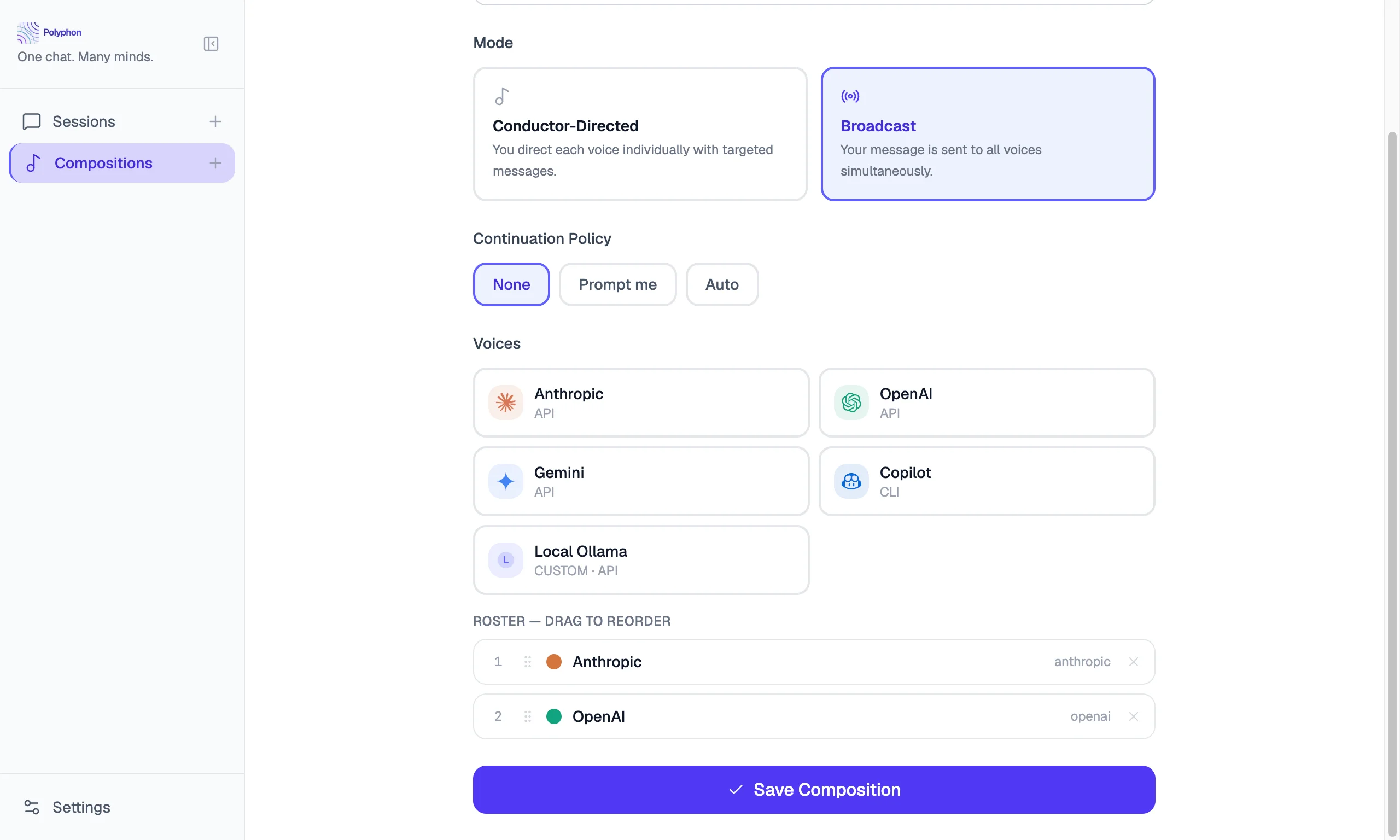
Once a custom provider is added in Settings, it appears in the provider grid inside the Composition Builder alongside built-in providers. Click it to open the voice configuration form, then select a model and configure the voice as normal.
Custom provider voices are labelled CUSTOM · API in the provider grid.
Cross-links
- Voice Providers — built-in API and CLI provider setup
- Compositions — adding a custom provider voice to a composition